Make a YouTube thumbnail (1280 × 720)
Thumbnails are seen small, so text must not blend into the photo. A stroke and a shadow keep it readable over any background.
Steps
-
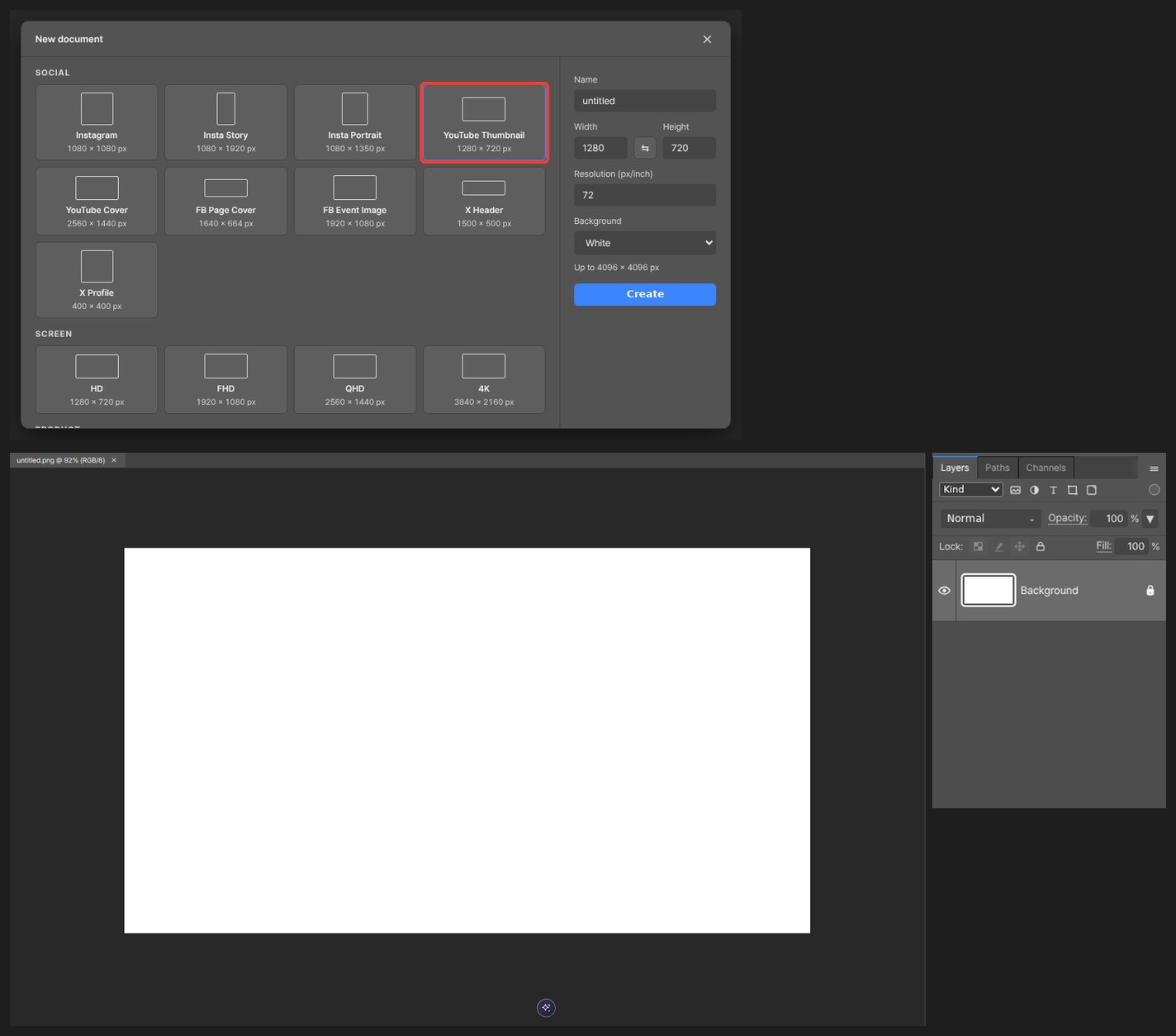
Pick the YouTube Thumbnail preset in New — it creates a 1280 × 720 canvas.
-
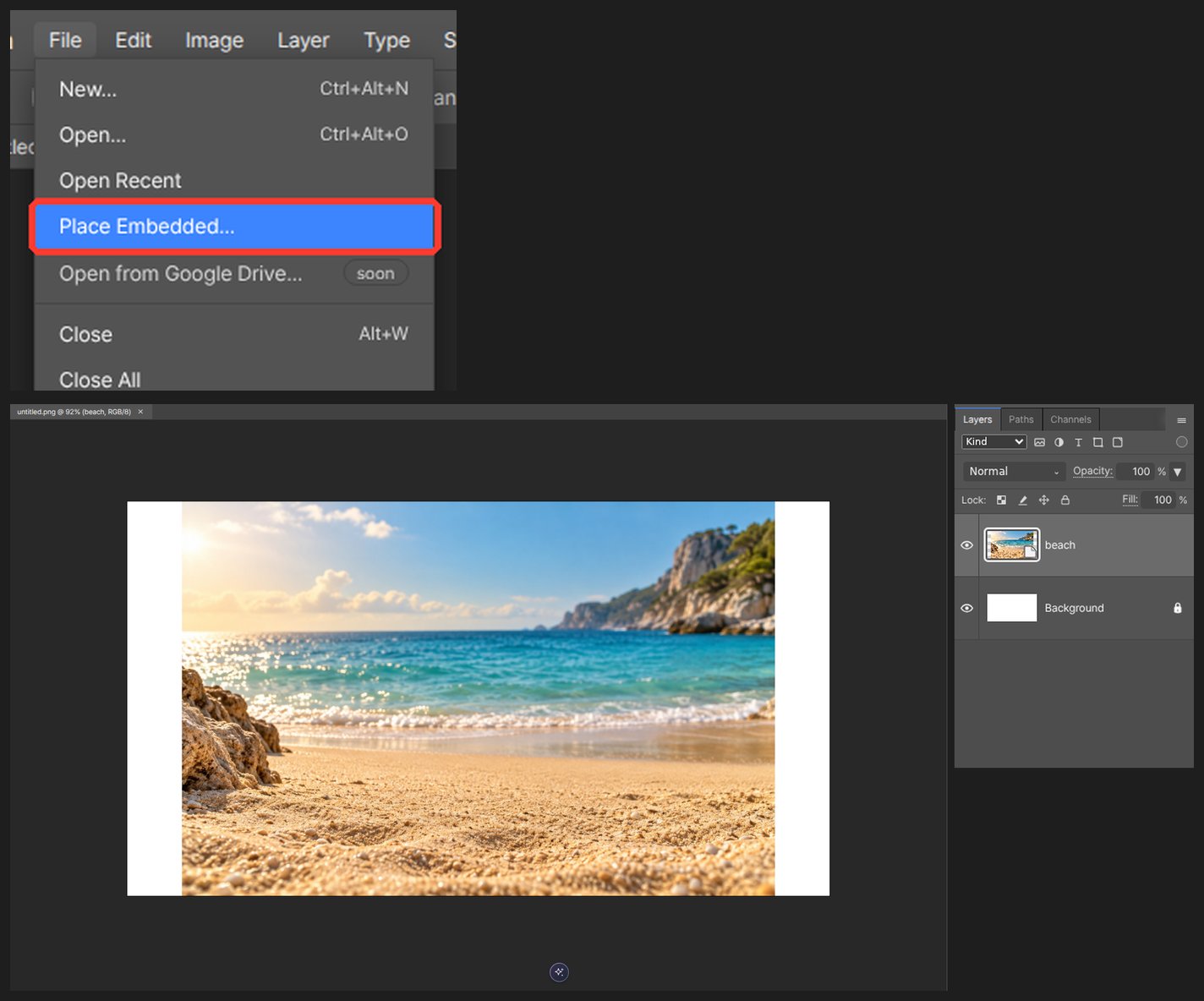
Drop your photo in and size it.
-
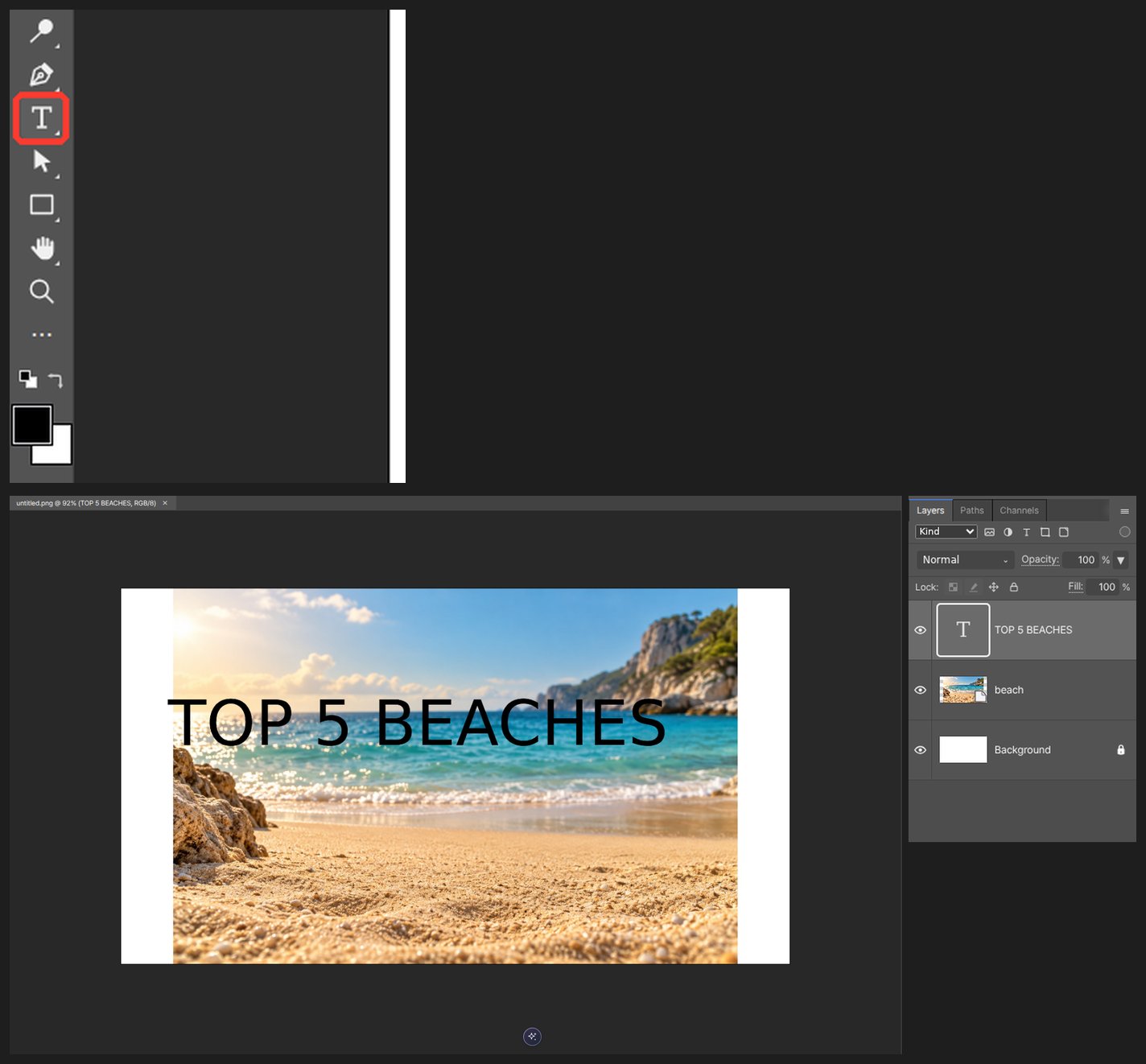
Press T and enter a short headline. To style only a few characters, select them while editing, then change the font or color. Check that the rest of the text stays unchanged.
-
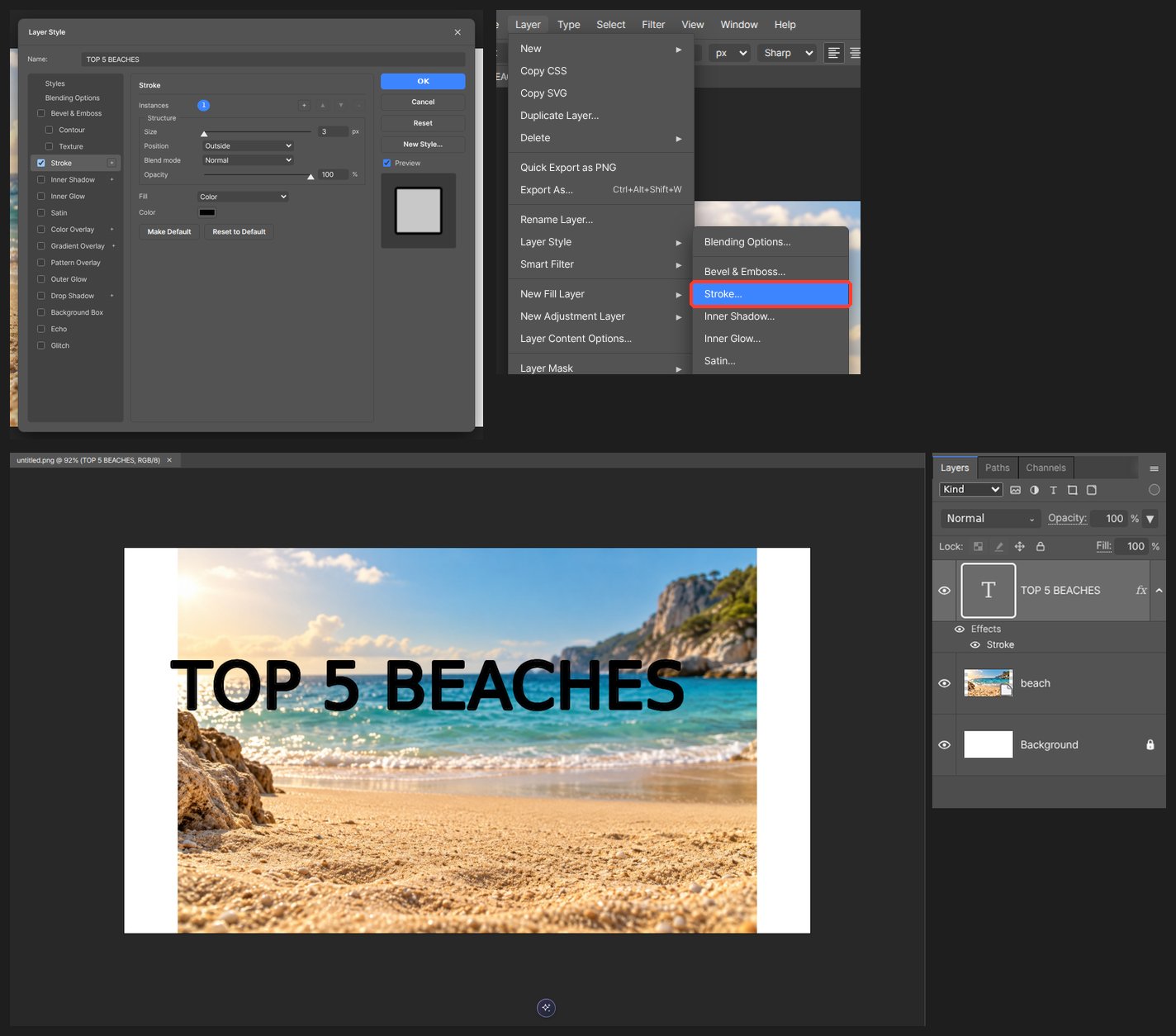
Turn on Stroke and Drop Shadow in layer style to separate it from the photo.
-
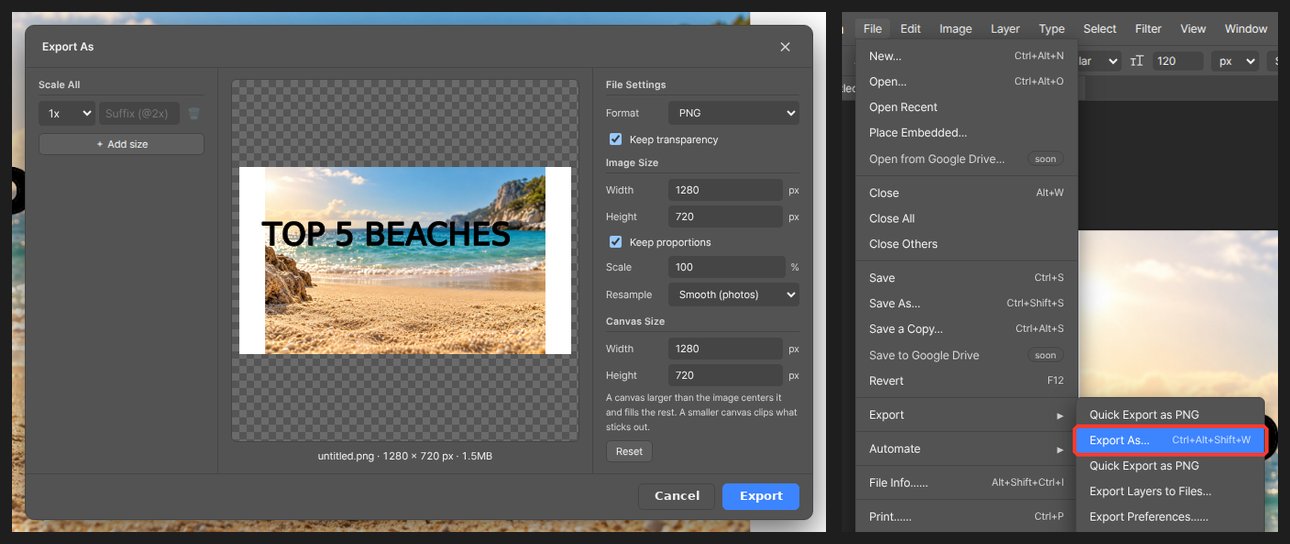
Export as JPEG and inspect the downloaded image at a small size. Keep a project copy so you can change the headline later.
Check contrast at the size viewers will see, not only while zoomed in. Avoid placing important text in the bottom-right corner, where a duration badge can cover it.
Questions
The text disappears into the background.
Turn on Stroke and Drop Shadow in Layer Style. A slight bend with Warp Text makes it stand out more.
Is there a file size limit?
Check the current upload requirements in YouTube Studio. If the exported file is too large, lower JPEG quality and inspect readability again.