Remove a background without Photoshop
Removing backgrounds is the most common job in product listings. PhotoVim finds the subject for you and applies the result as a mask, so you only brush over the spots it got wrong.
Steps
-
Drag your image onto the canvas.
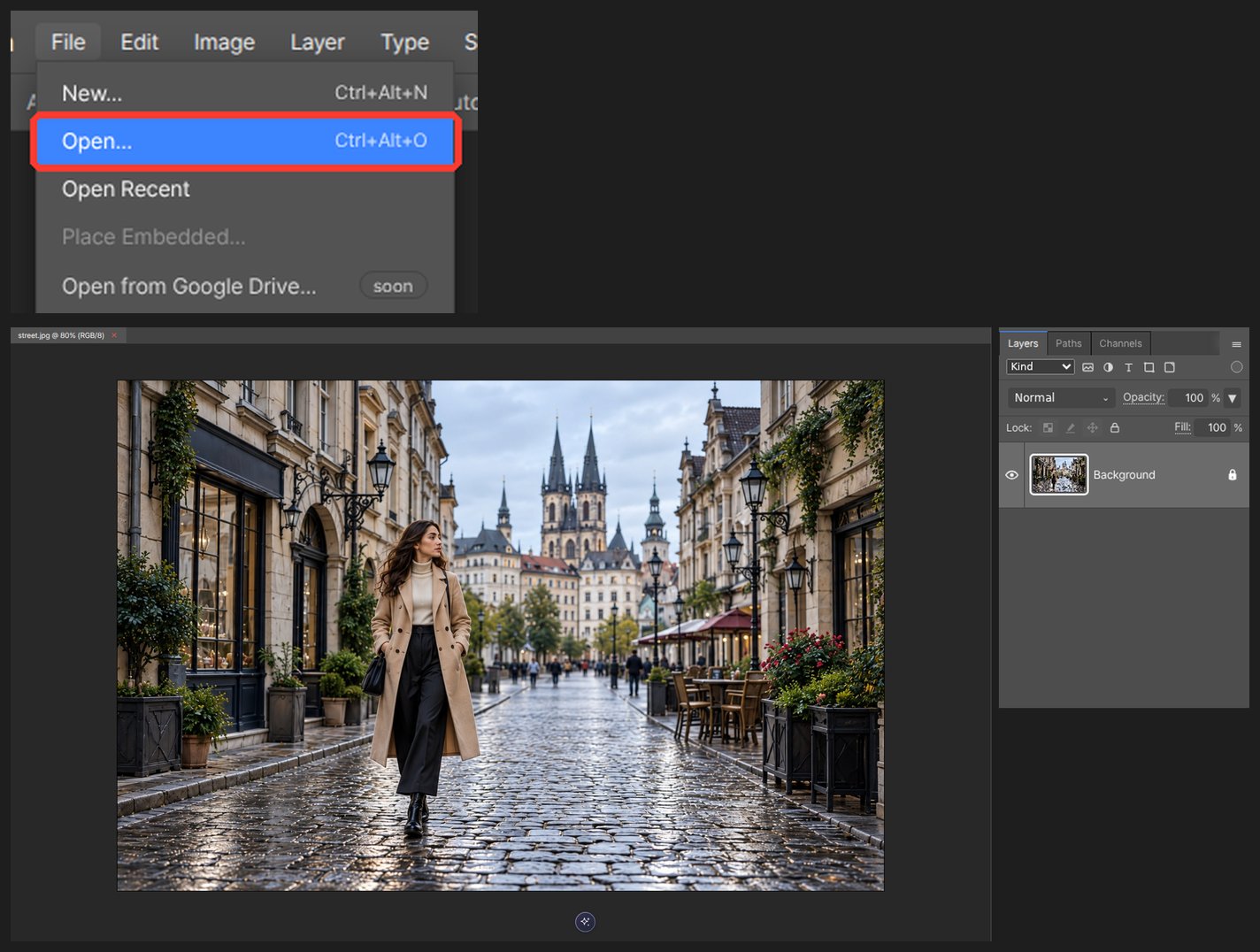
-
Press Select Subject and it traces the person or object for you.
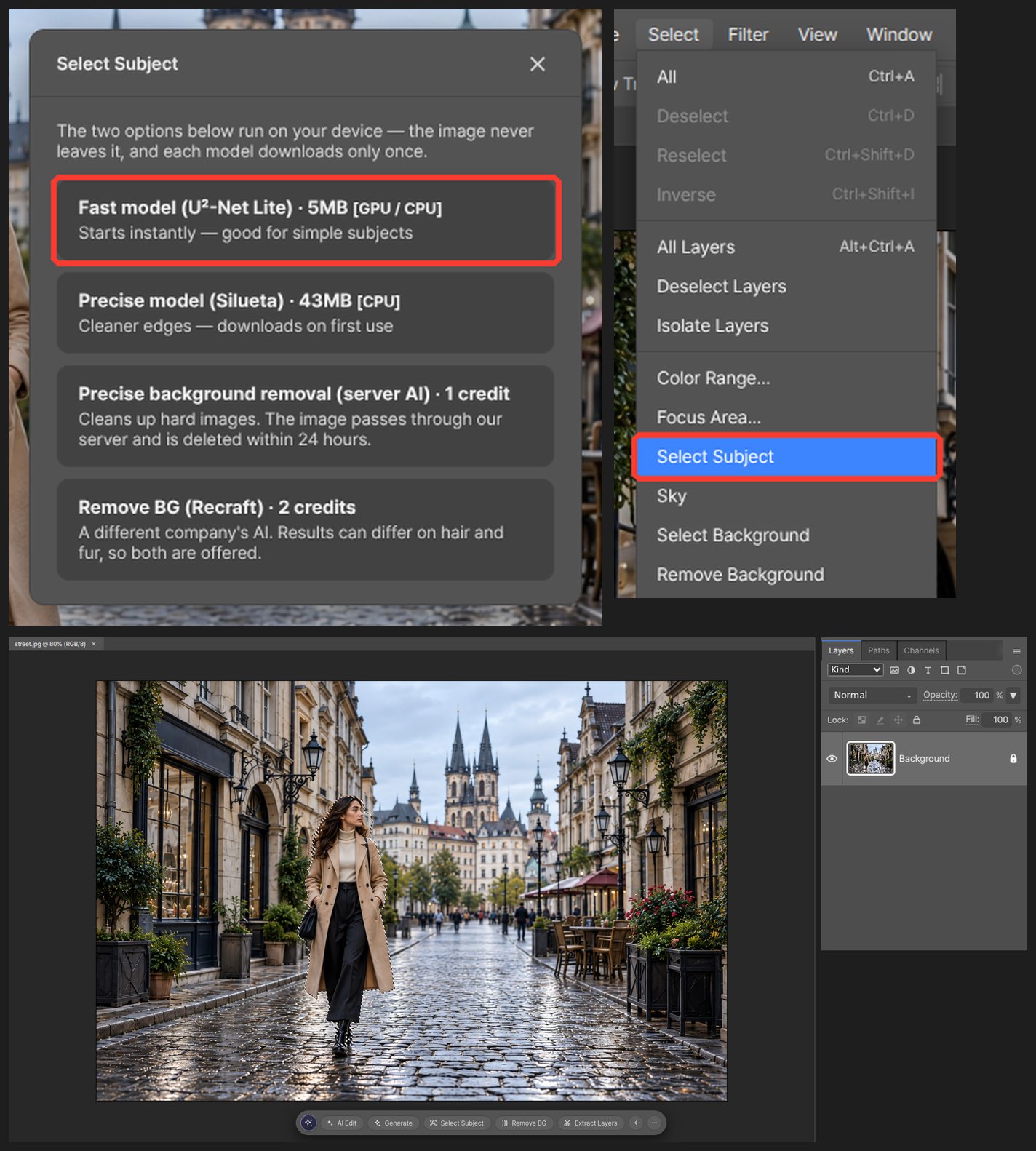
-
Save the selection as a mask and the background disappears.
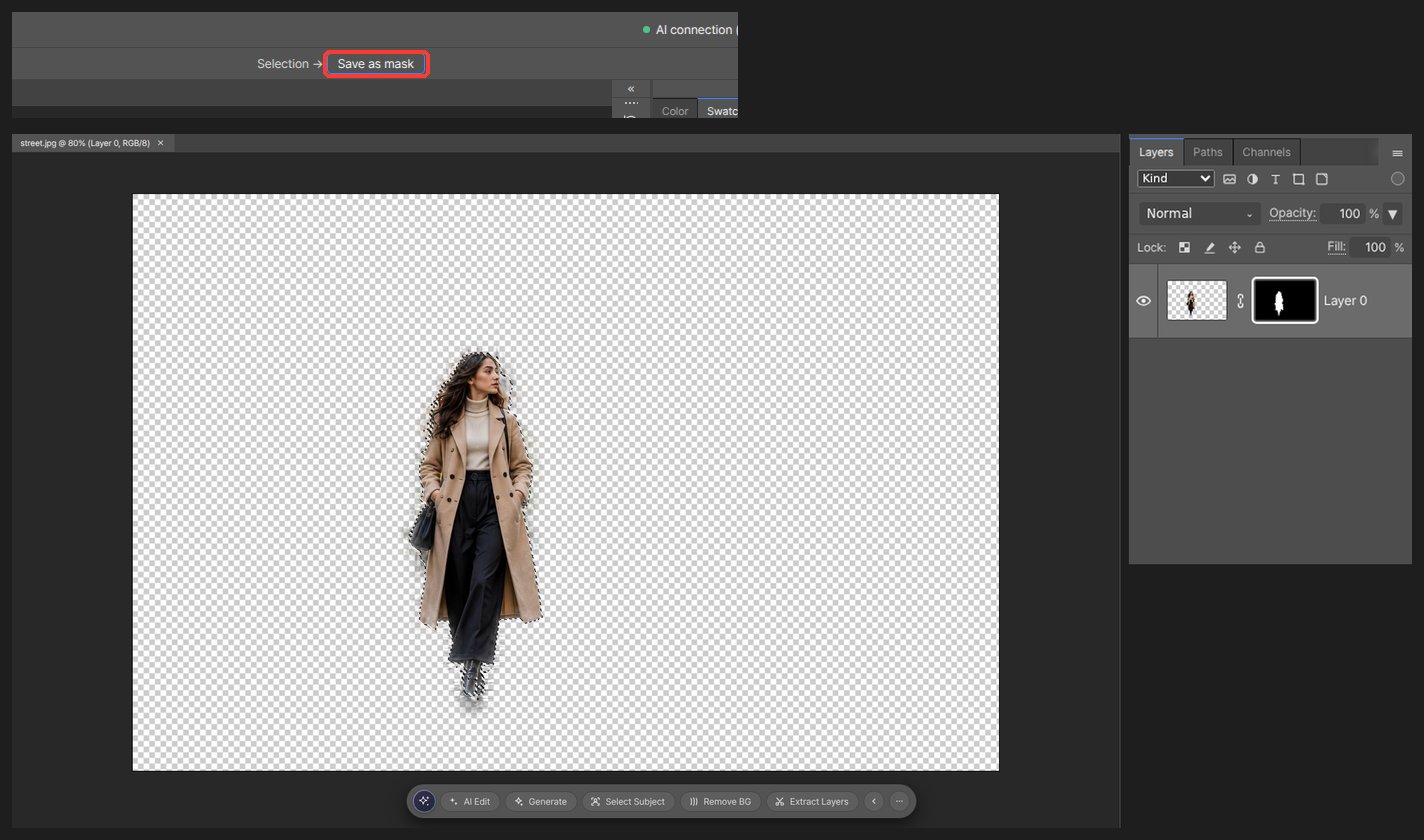
-
Brush the mask to fix edges like hair.
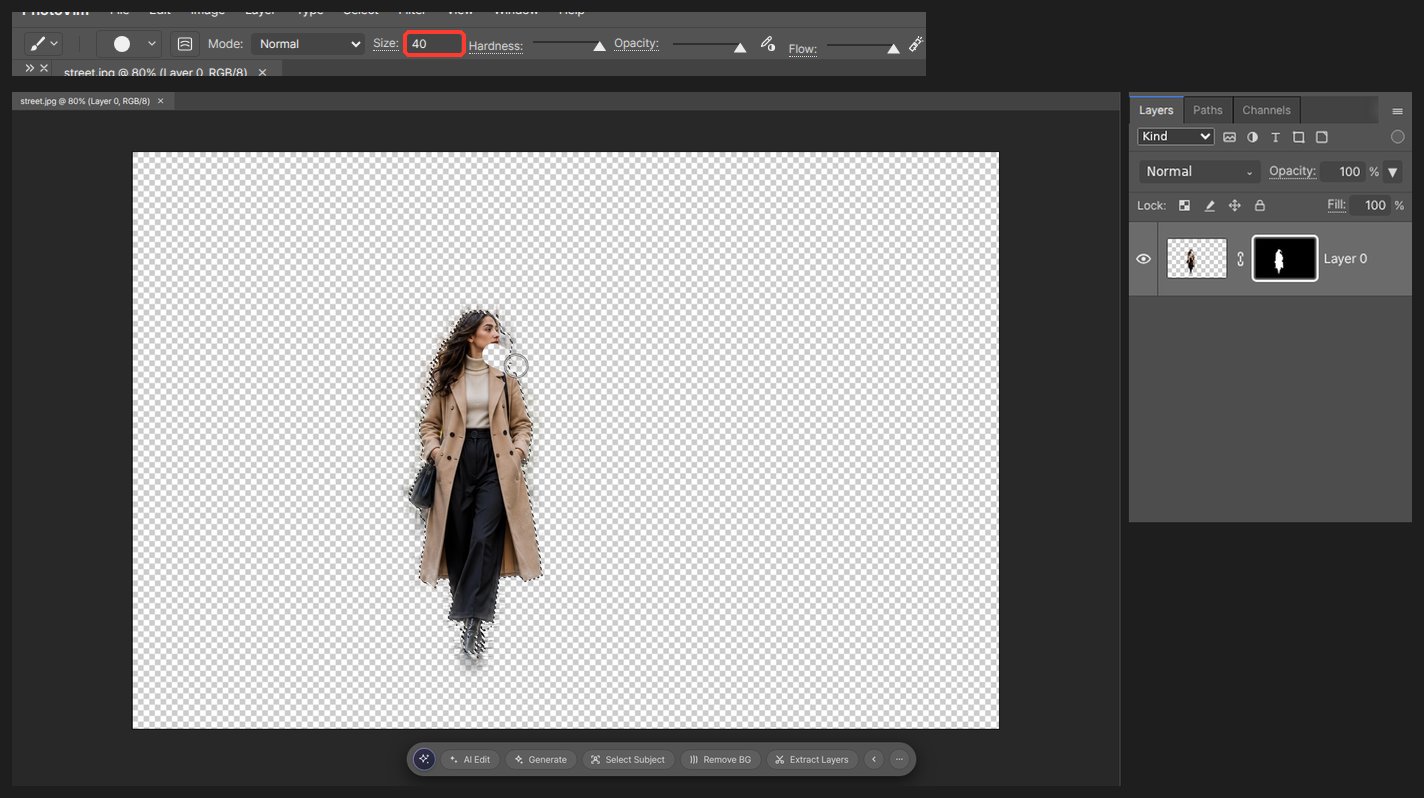
-
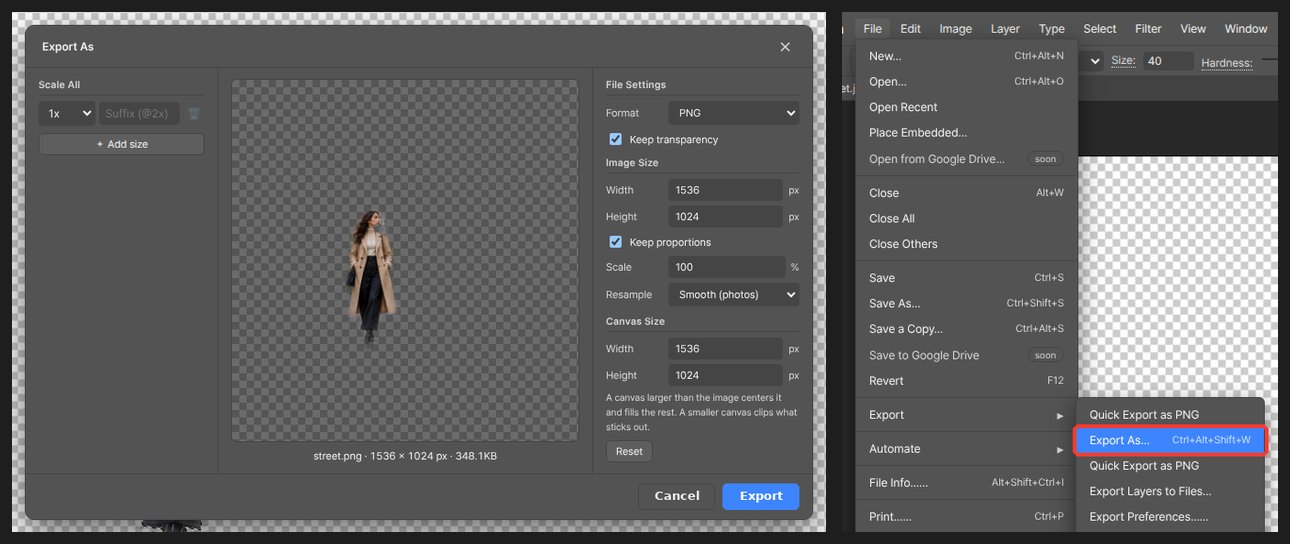
Choose PNG in Export As to keep the transparency.
Worth knowing
JPEG cannot store transparency. If you removed the background, export as PNG or WebP.
Questions
The hair edge is rough.
Paint the mask with a soft brush. Black hides and white reveals. You don’t need to run Select Subject again.
Can I do many photos at once?
One at a time. Record the same steps as an action and the next photo takes one click.