Open a PDF as layers and edit it (no Photoshop)
Fixing a PDF from the printer or a designer’s draft used to need Photoshop. PhotoVim lets you pick pages when opening and brings each in as a layer, then exports a one-page PDF with the image.
Steps
-
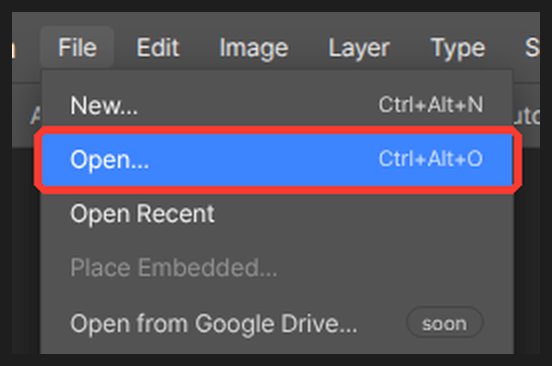
Choose the PDF in File > Open or drop it on the canvas. The first time, the PDF reader downloads for a few seconds.
-
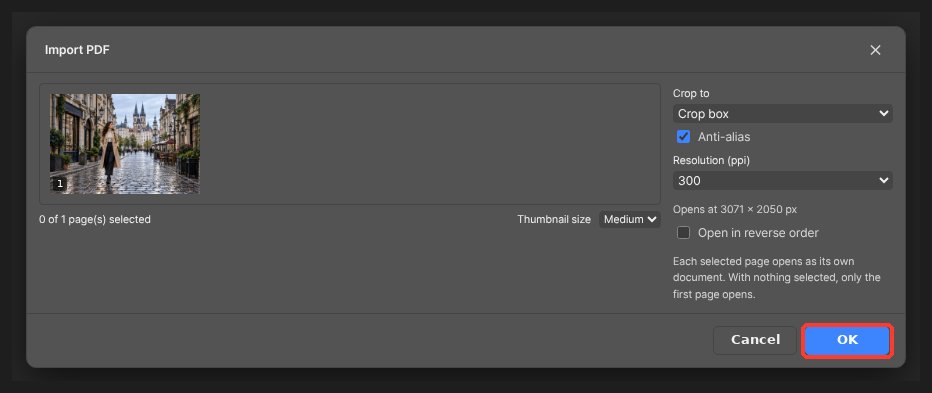
A page preview appears. Pick the page and set the resolution. For print, 300 is recommended.
-
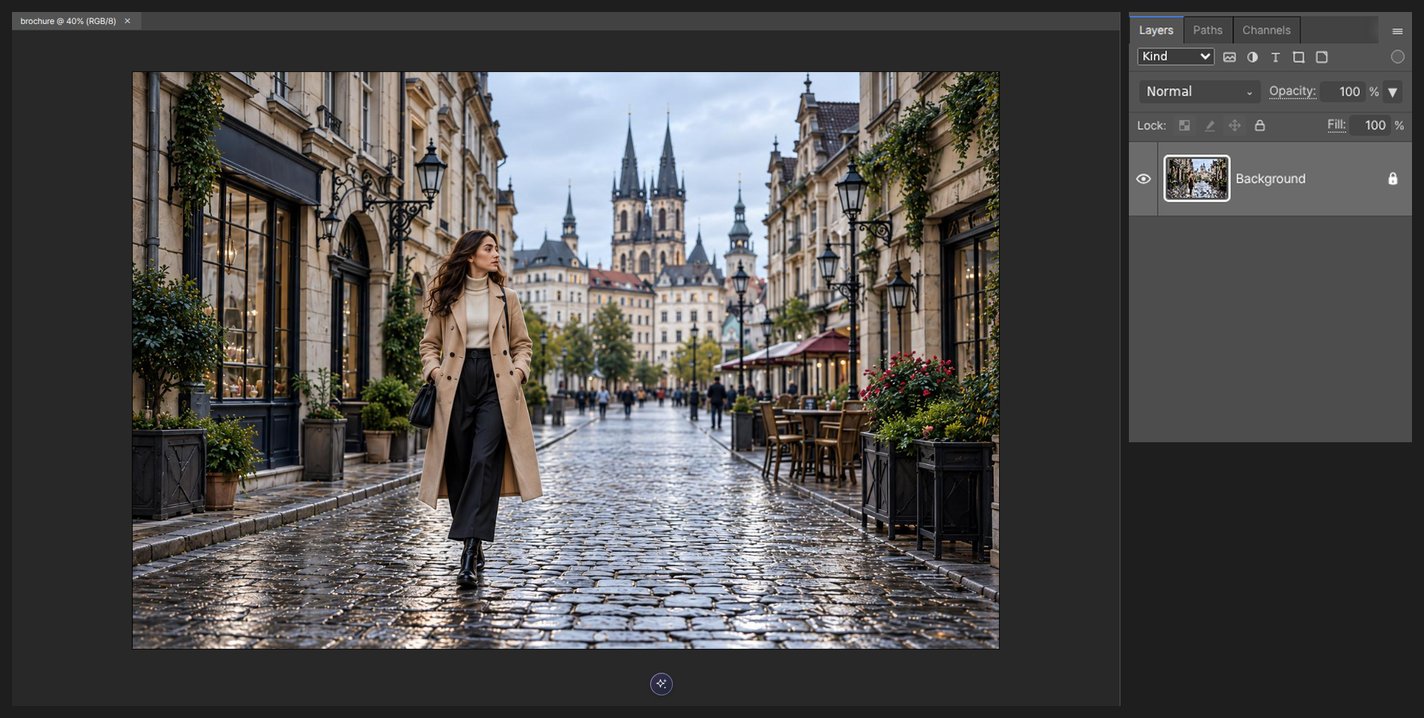
The page opens as a document. Text and images arrive as one image layer.
-
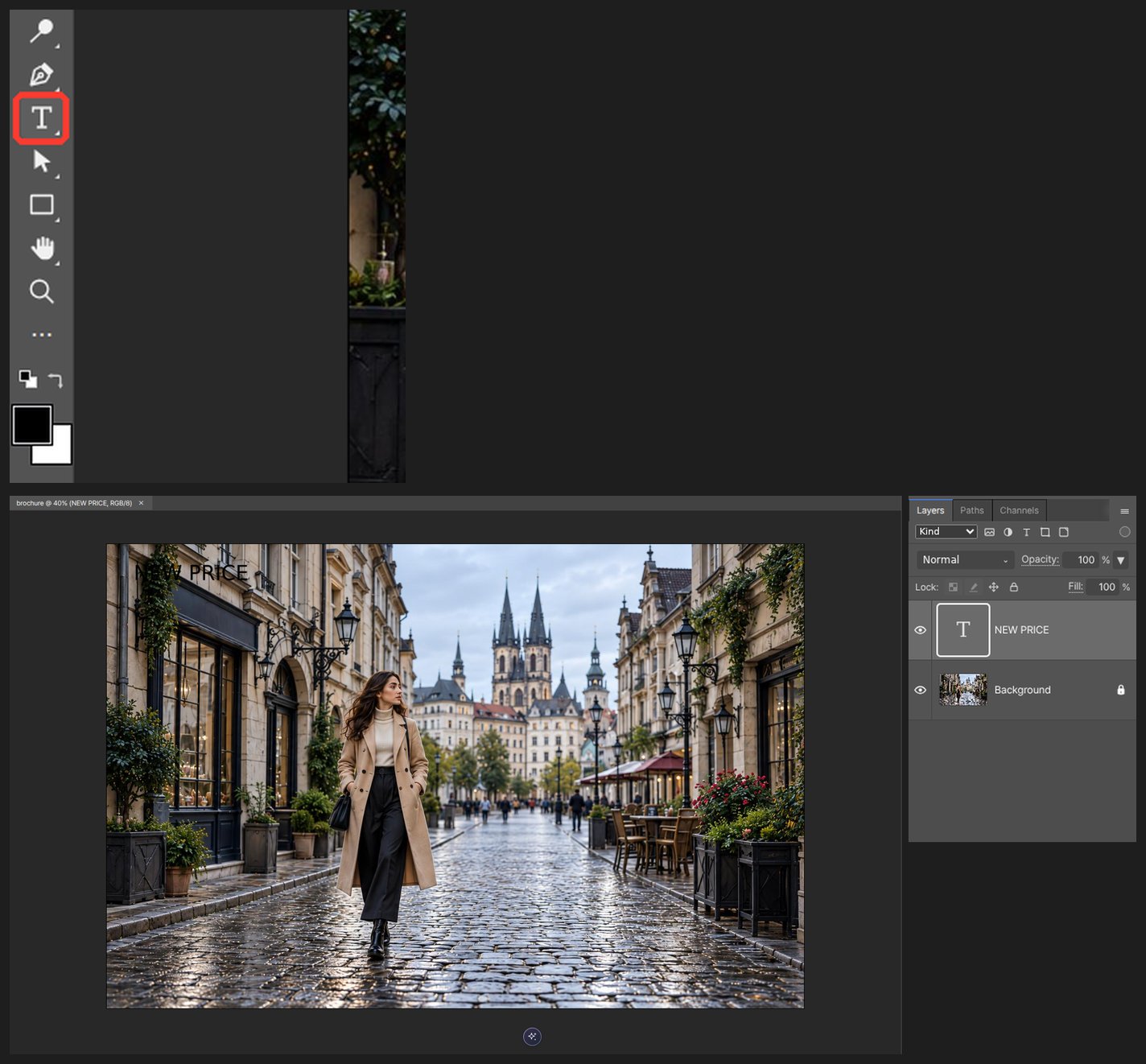
Select what to change and use Remove or Generate Image in the AI panel, or place new text with the Type tool.
-
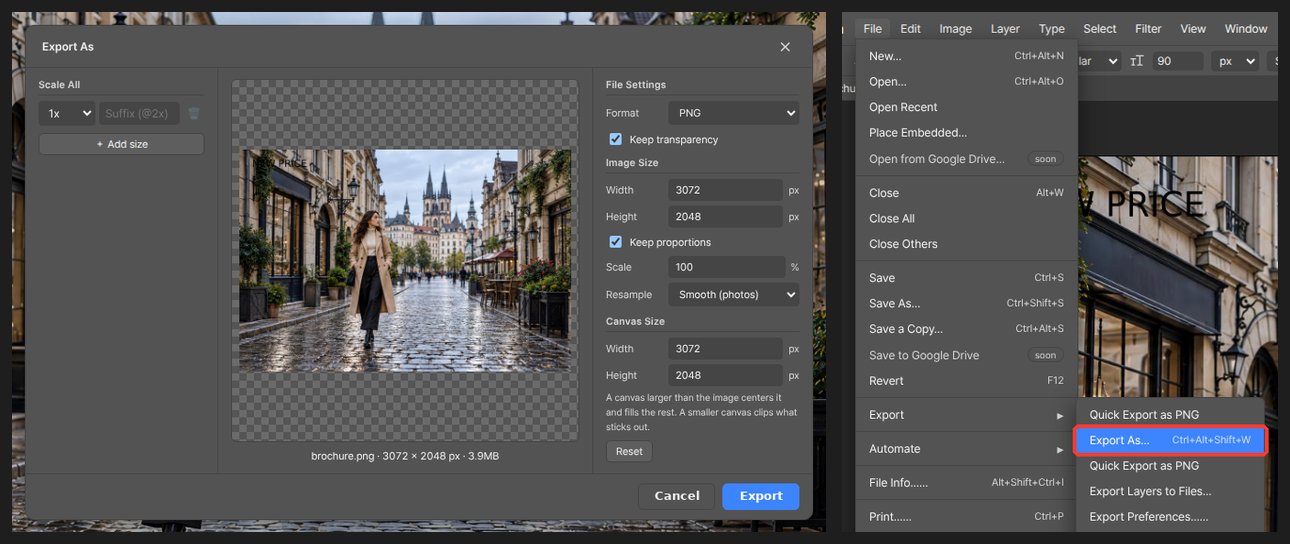
In File > Export choose PDF for a one-page PDF, or PNG/JPG for an image.
PDF text arrives as pixels, so the letters themselves cannot be edited. Remove the area with AI Remove and retype it with the Type tool.
Questions
Does it work with long PDFs?
With many pages only the first few are previewed, and you pick from those. Opening one page at a time is recommended.
Can I save several pages into one PDF?
Export writes a PDF with one image per page for now. For several pages, export each and join them with a PDF merge tool.