Set exact photo size and resolution (DPI) for print and ID photos
On screen only the pixel count matters. For print and official photo sizes the resolution value must match as well. The Image Size dialog sets both at once.
Steps
-
Open Image > Image Size. The current width, height and resolution are shown.
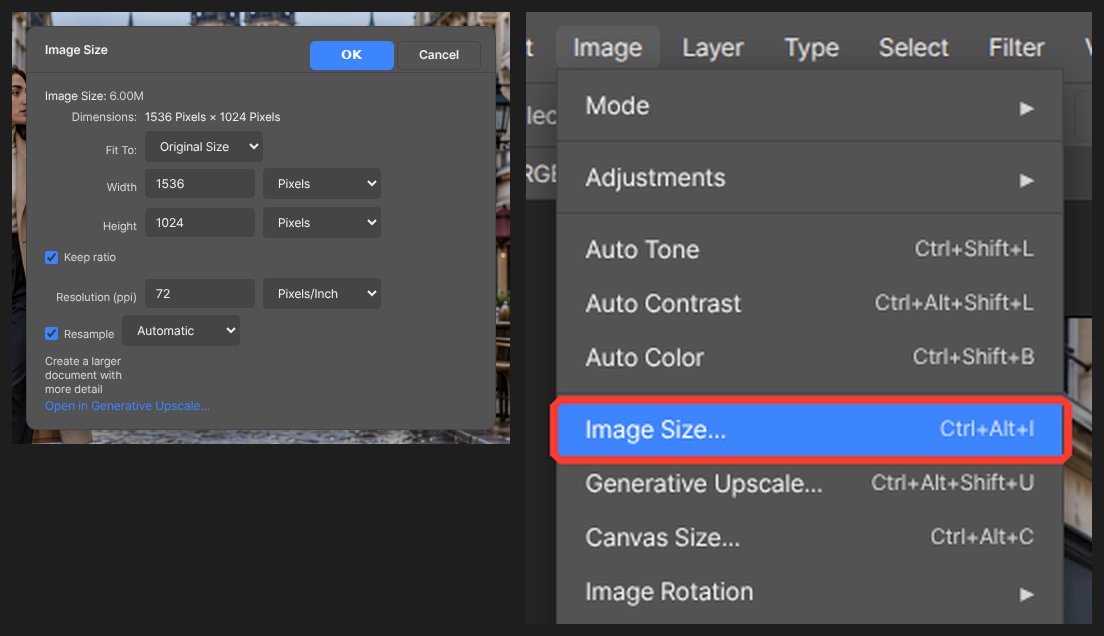
-
For print, type 300 pixels/inch as the resolution. For screen use, leave 72.
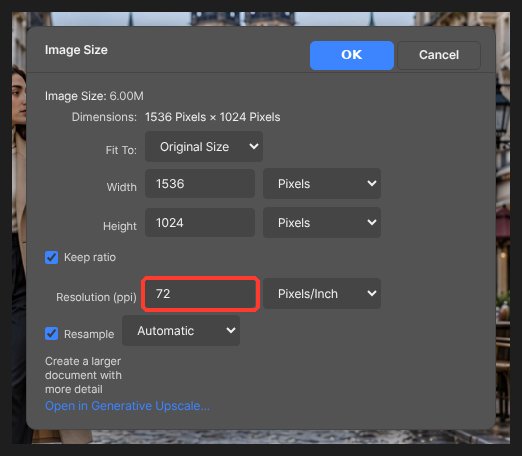
-
Switch the unit to centimeters or millimeters and type the size you need. With Keep Ratio on, typing one side fills in the other.
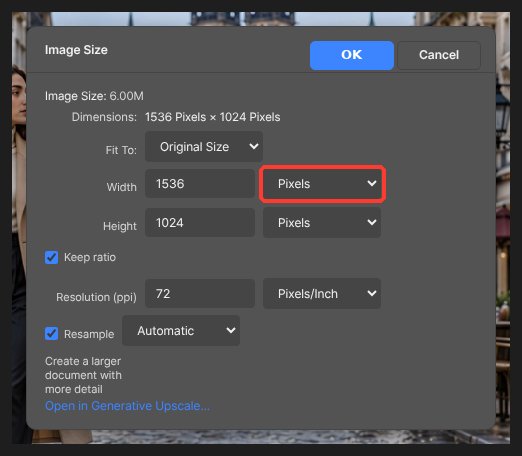
-
Enlarging adds pixels but does not add detail. Reducing is always safe.
-
Click OK and save as JPG or PNG from File > Export. The resolution value is stored in the file.
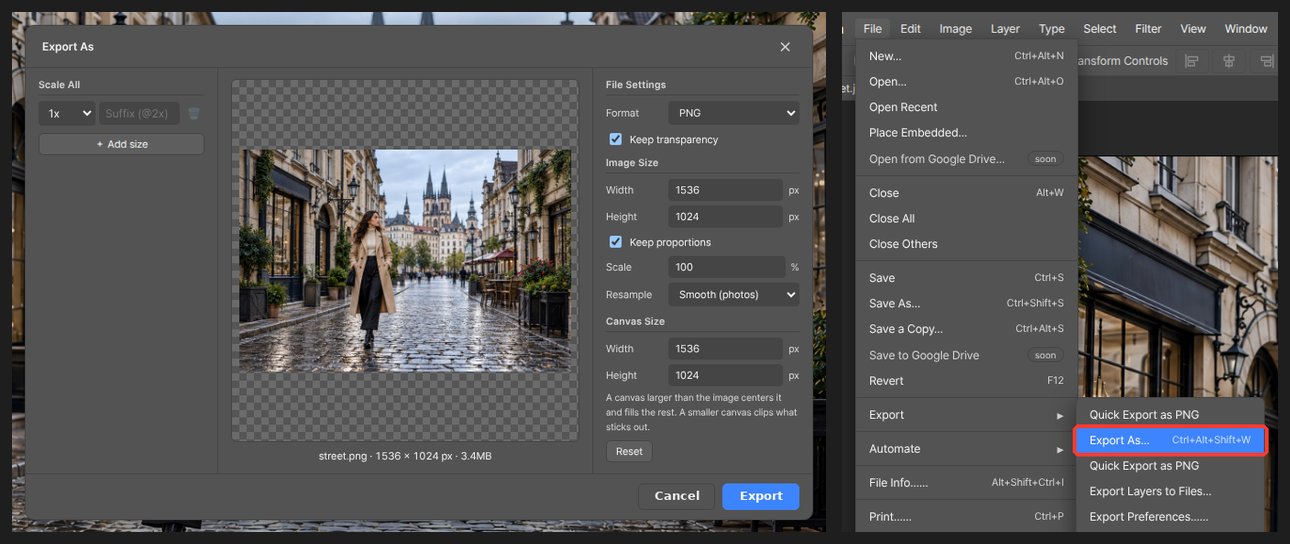
For a size with a different aspect ratio, such as an ID photo, set the ratio with the Crop tool first. Type a value in the options bar’s Resolution field and the crop is set to that resolution.
Questions
Does raising the resolution improve quality?
No. Resolution is how many pixels are printed per inch. With the same pixel count, a higher value only makes the print smaller.
I get a notice that the print resolution is low.
Export warns when the resolution is below the recommended print value. Raise it in Image > Image Size or reduce the print size.