Blur a photo background online (no Photoshop)
Blurring the whole photo smears the edges of the person too. Make a blurred copy, then mask the subject so the sharp original shows through there.
Steps
-
Open the photo and duplicate the layer with Layer > Duplicate Layer (Ctrl+J).
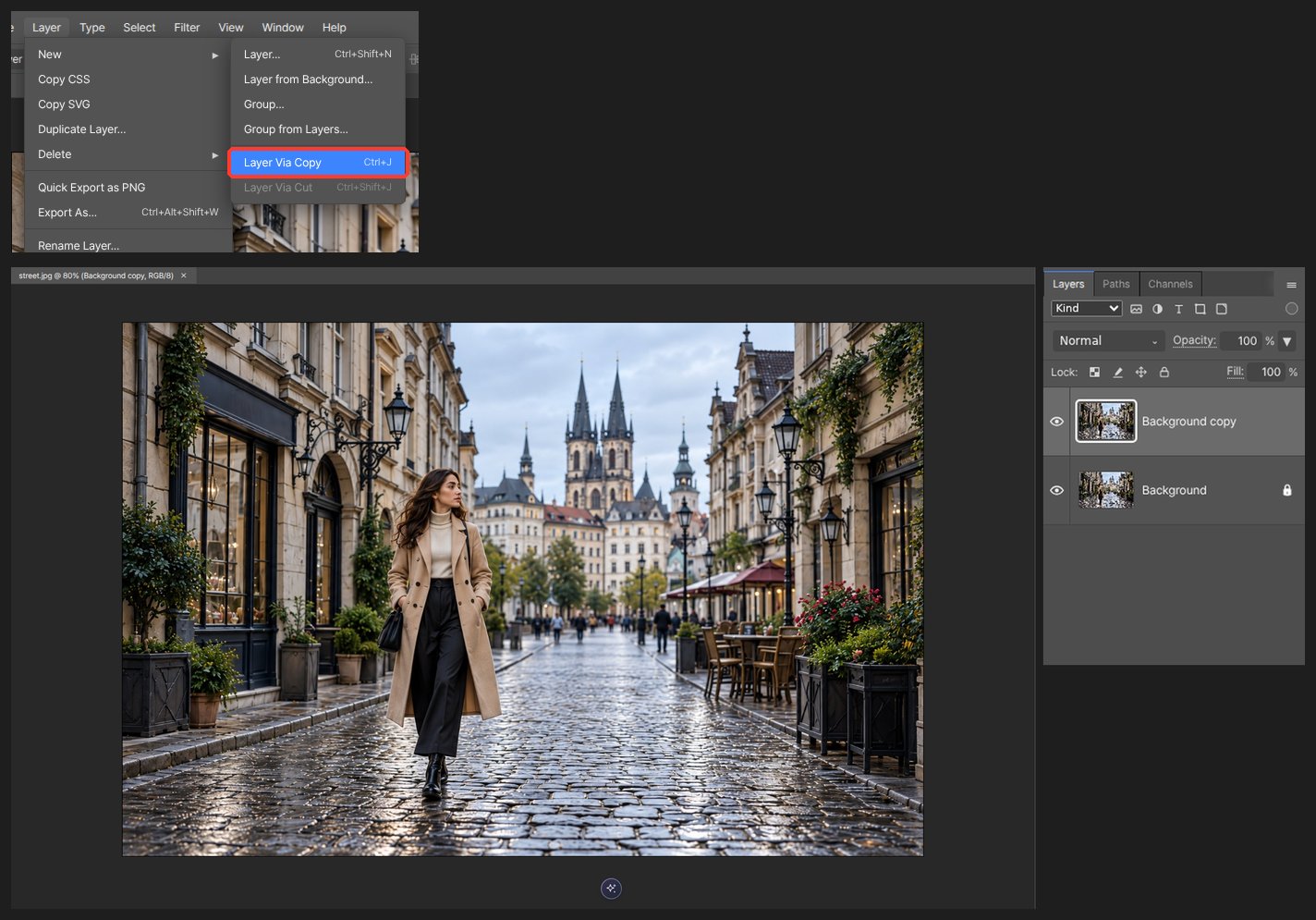
-
With the copy selected, open Filter > Blur > Gaussian Blur. Preview and pick a radius between 8 and 20.
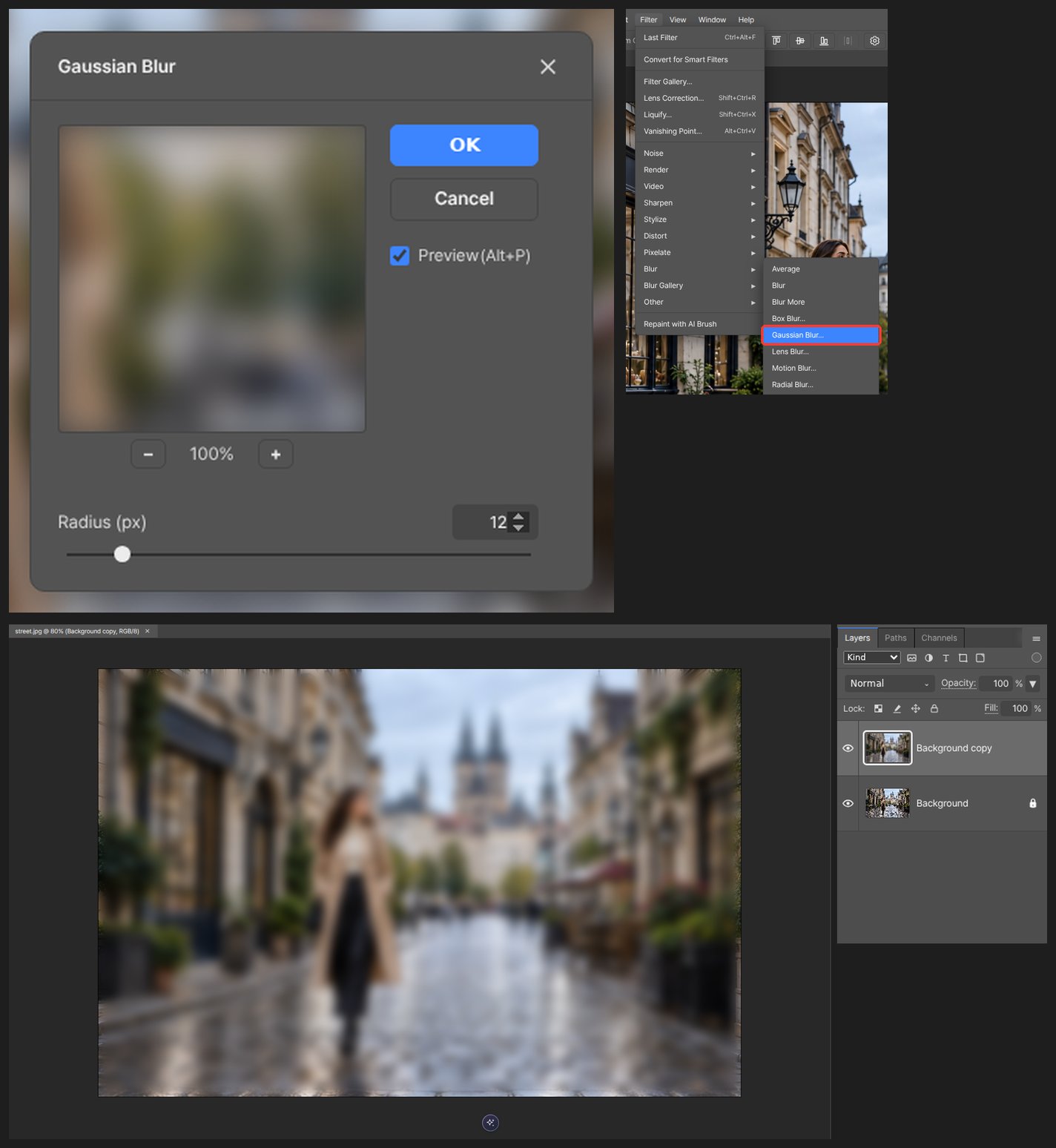
-
Choose Select > Select Subject. The outline of the person or object is picked automatically.
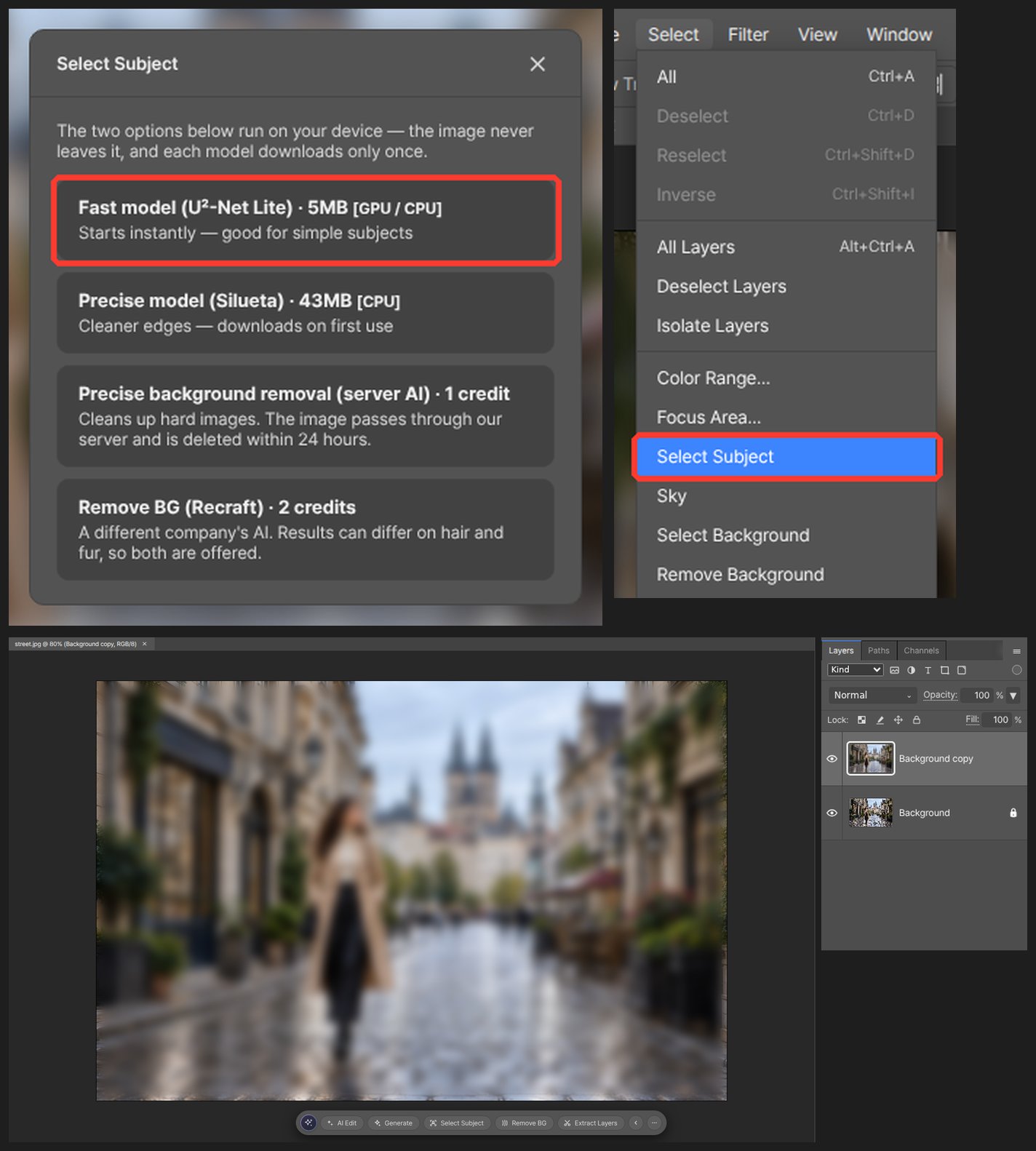
-
Choose Select > Inverse so the background is selected instead.
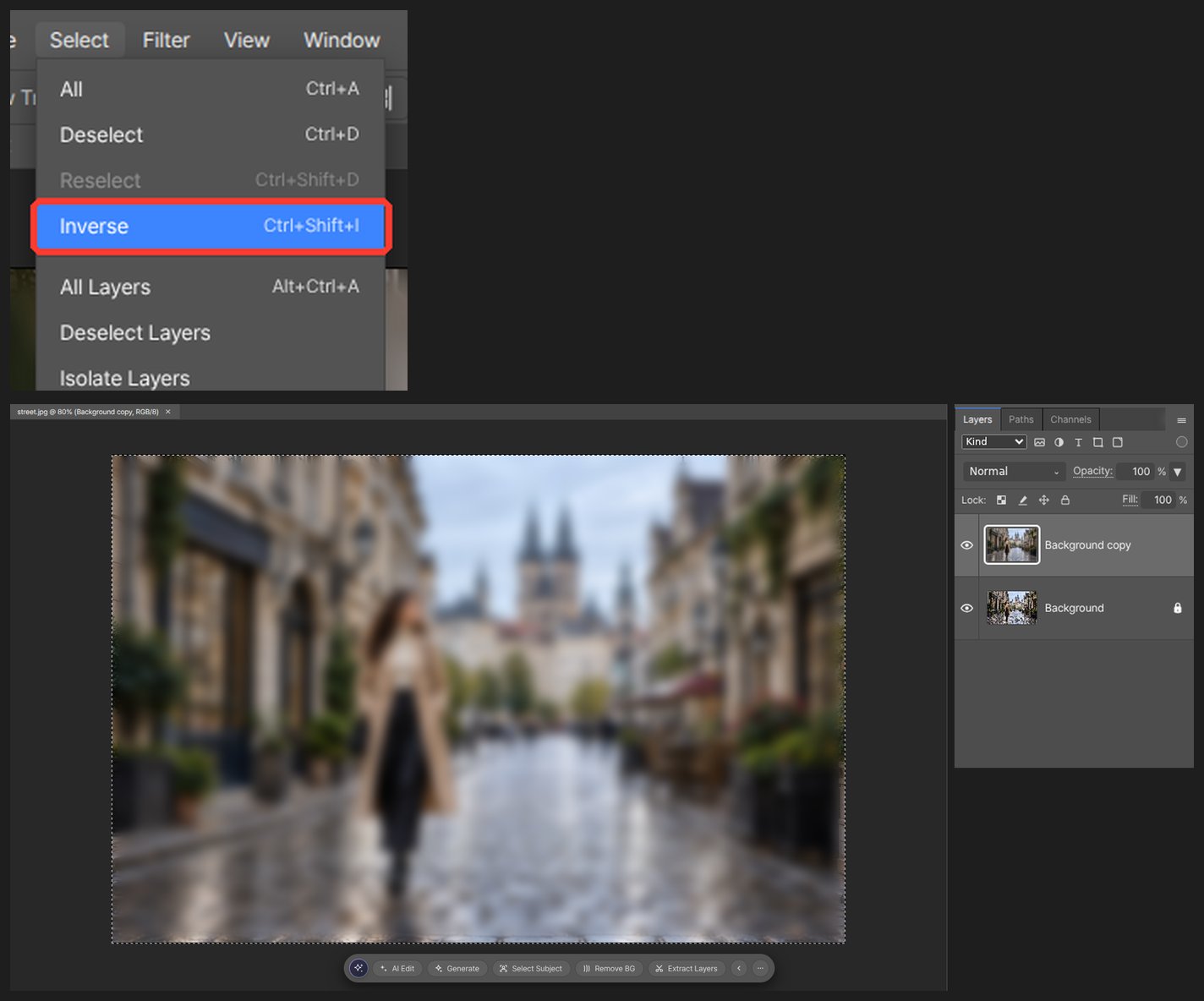
-
Click Add Layer Mask in the Layers panel. The mask takes the selection’s shape: the background shows the blurred copy and the subject shows the sharp original beneath.
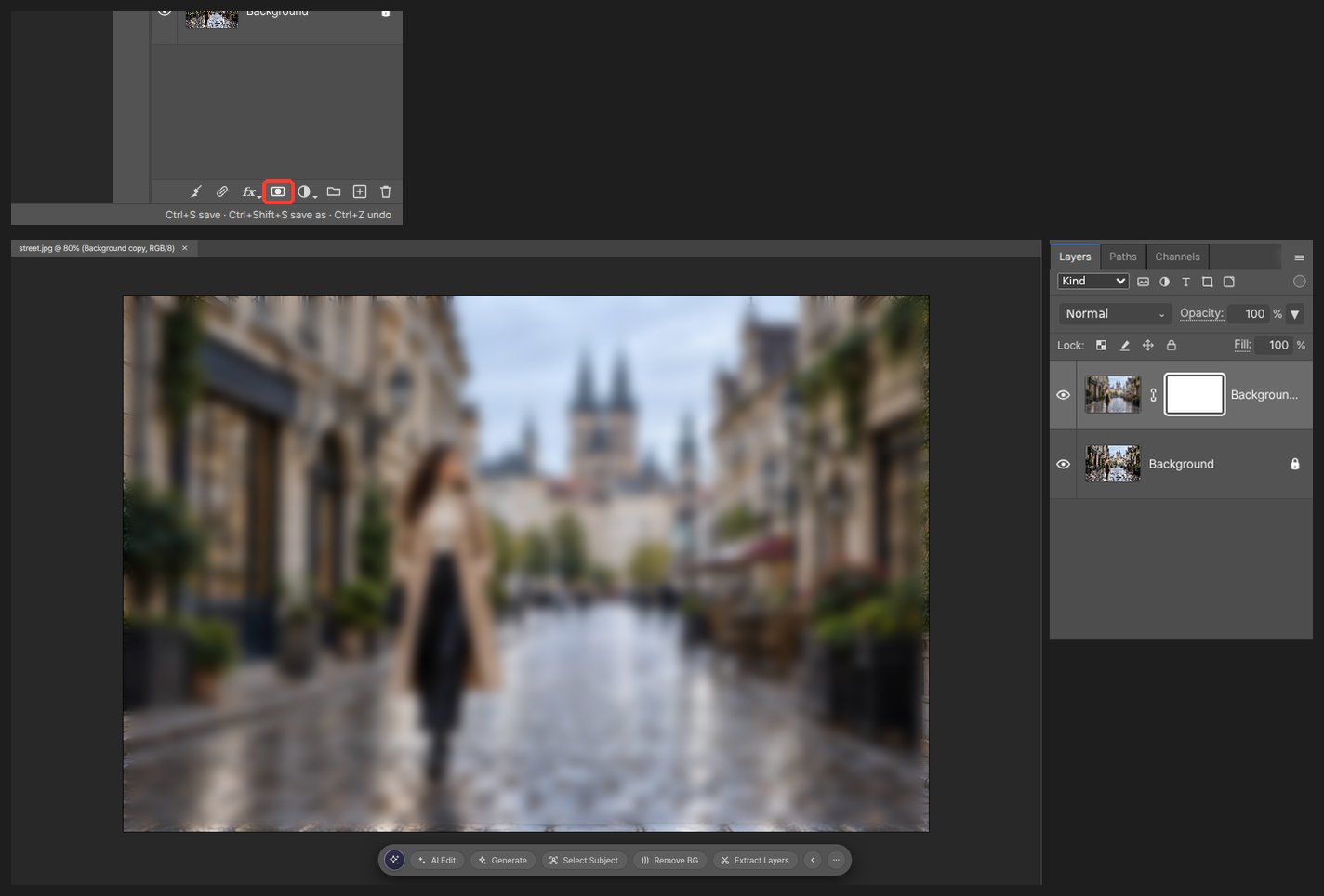
-
Where the edge is rough, such as hair, paint the mask with a soft brush.

Two blur levels (light for the near background, strong for the far one) look like a real camera. Make two copies and give each a different radius.
Questions
Isn’t there a one-click background blur?
No. Select Subject plus a mask lets you fix the result with a brush, which gives a better outcome.
Can I undo the blur later?
Only the copy was blurred. The original layer is untouched, so deleting the copy takes you back to the start.