Create a Sneaker Ad with a Product Cutout, Shadow and Dust
Build a product ad from a transparent sneaker, a separate shadow, orange dust and blue particles. Follow the recorded workflow with the practice source files.
Pause at each step and follow the shortcuts on screen. The practice files contain separate source layers; the video is a recorded UI demonstration.
Watch the vertical Shorts tutorial
English subtitles (SRT)Steps
-
Create the document and place the background
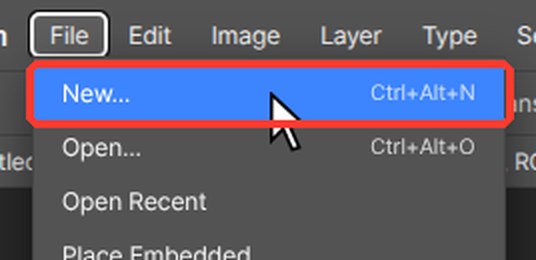
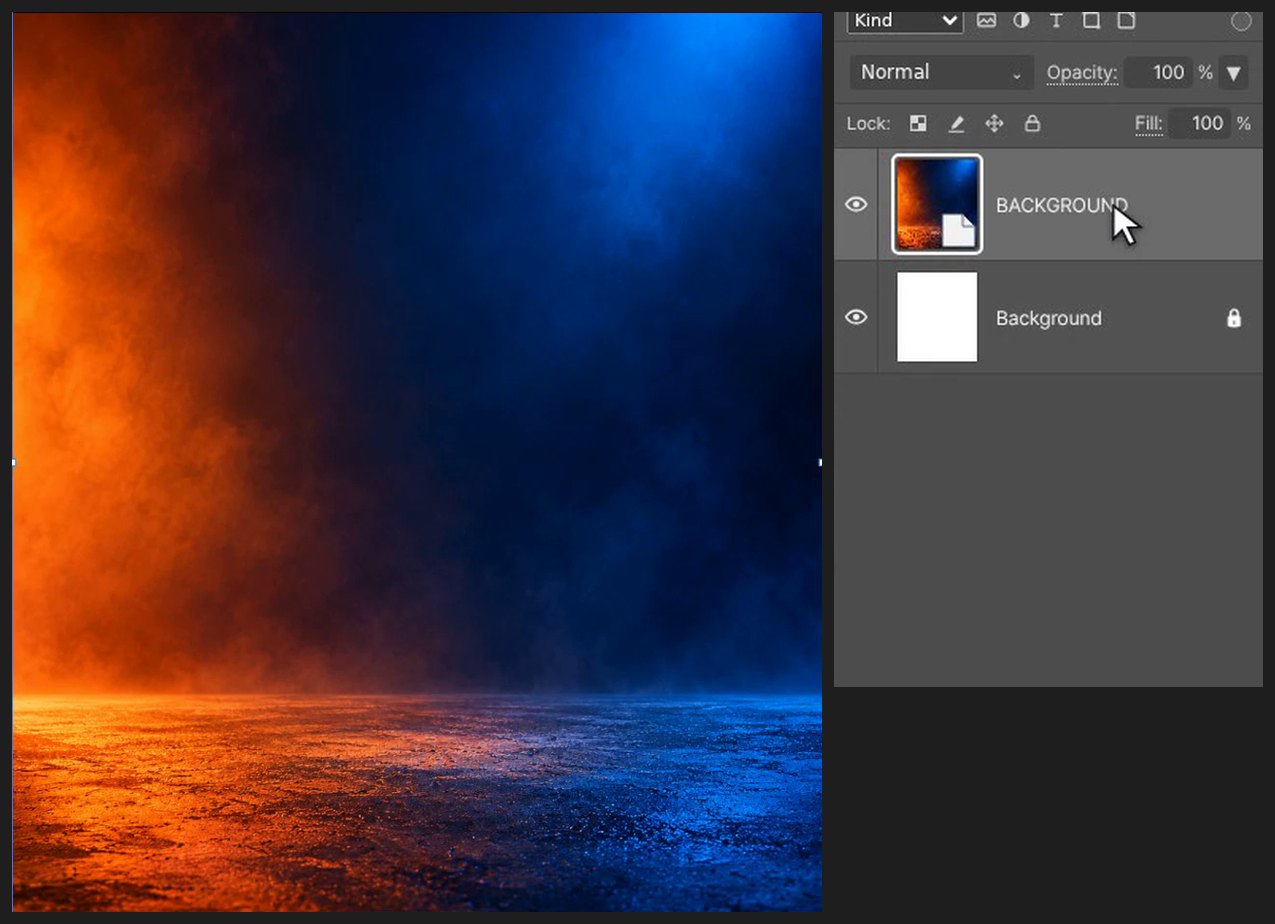
Press Ctrl+Alt+N (or File > New…). Type 1080 in Width and 1200 in Height, then click Create. Choose File > Place Embedded… and pick BACKGROUND_ORIGINAL.png. Drag inside the box to move it and drag a corner handle to resize it. Press Enter (or double-click the image) to finish.
-
Add the soft shadow
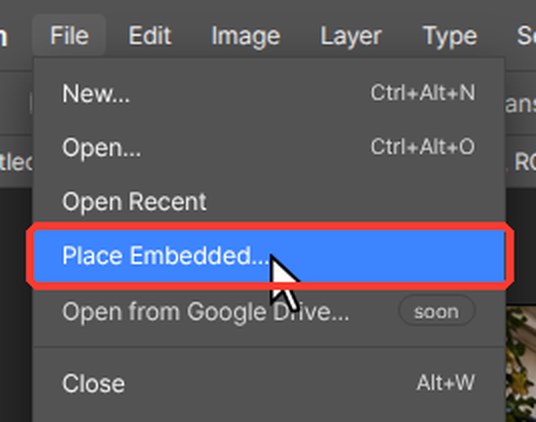
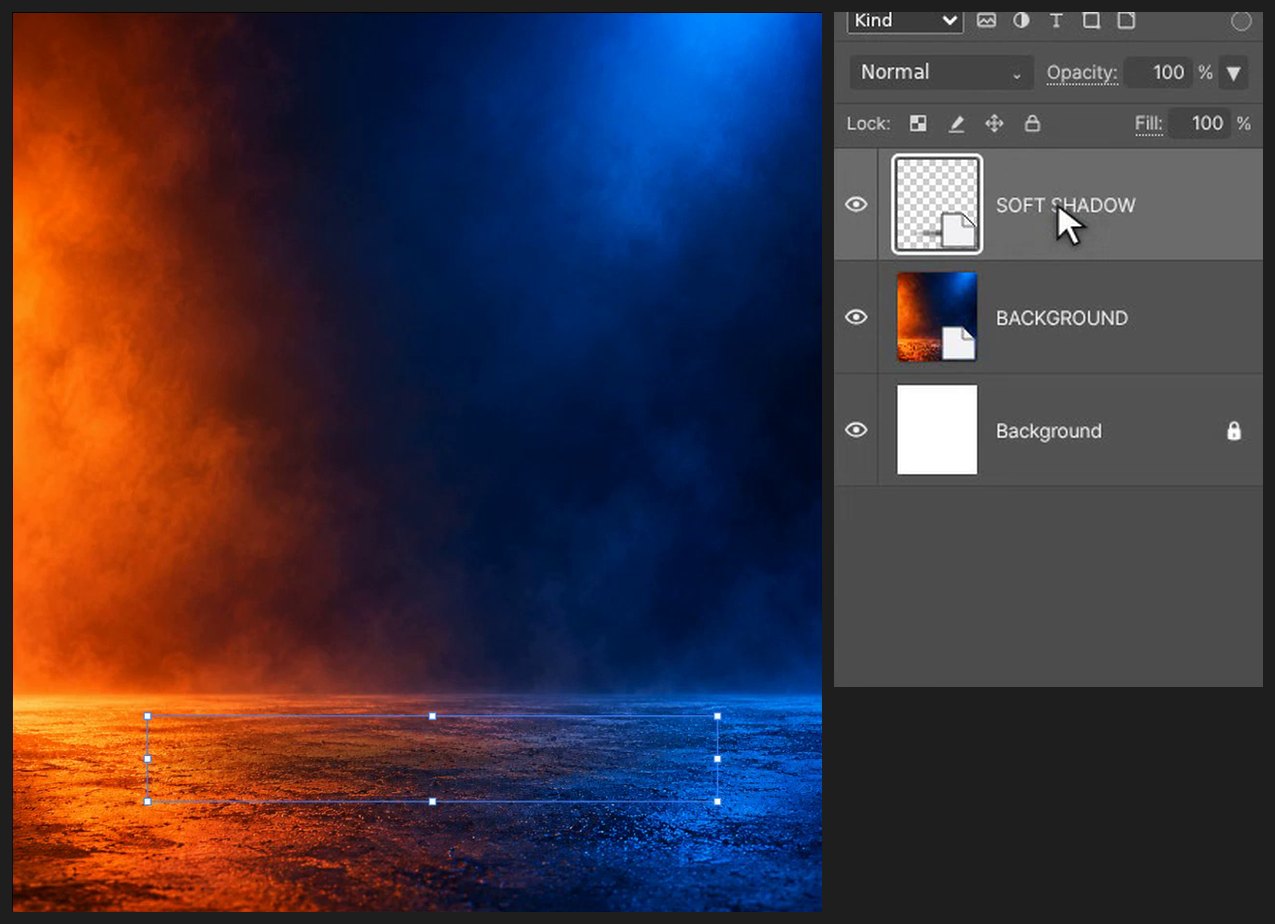
Choose File > Place Embedded… and pick SHADOW_EDITABLE.svg. Drag inside the box to move it and drag a corner handle to resize it. Press Enter (or double-click the image) to finish. Put it where the shoe will float.
-
Add the orange dust
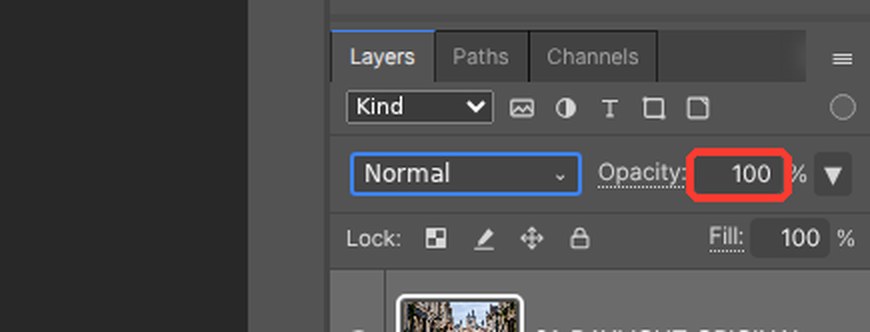
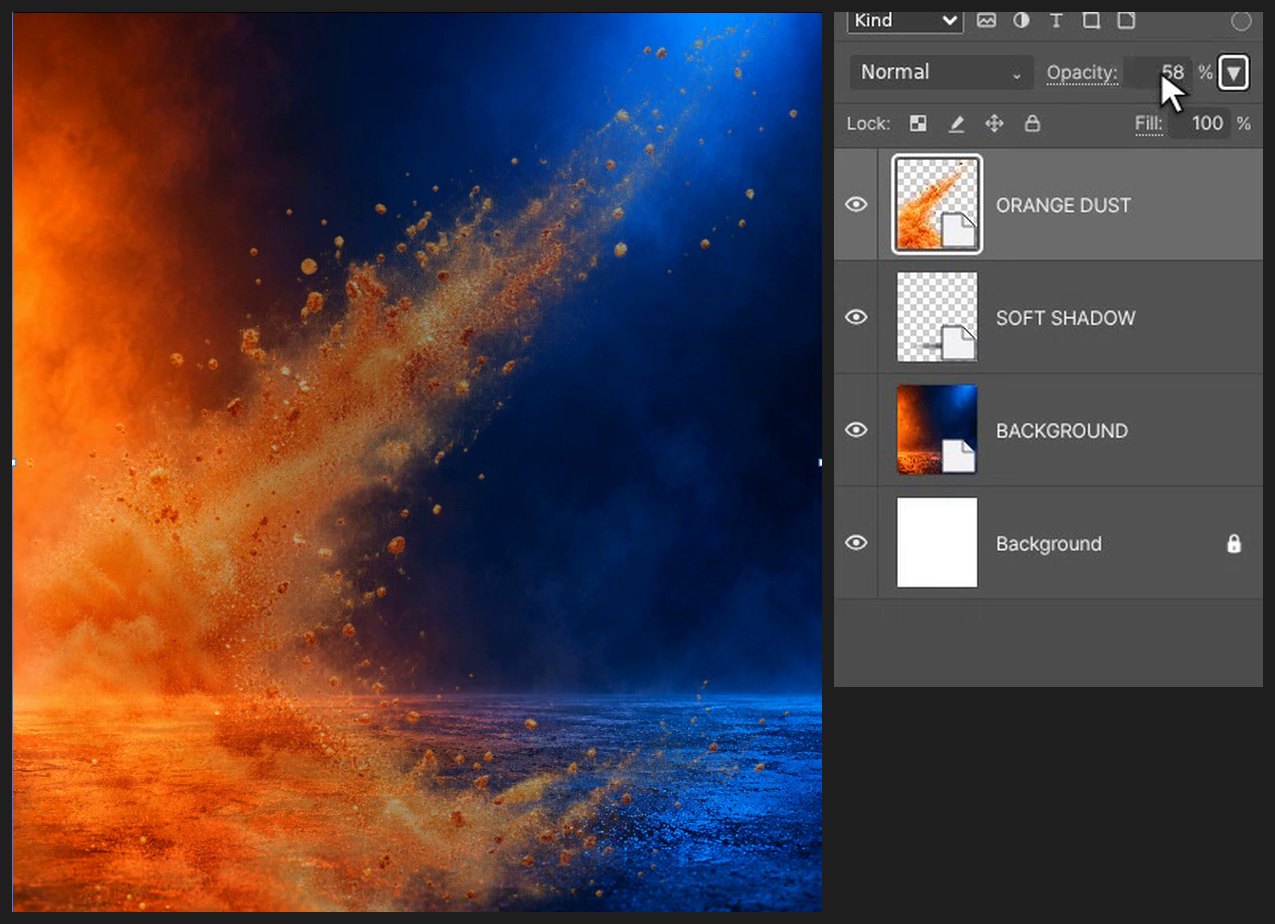
Choose File > Place Embedded… and pick DUST_ORIGINAL_ALPHA.png. Drag inside the box to move it and drag a corner handle to resize it. Press Enter (or double-click the image) to finish. Type 58 in the Opacity box at the top right of the Layers panel and press Enter.
-
Add the blue particles
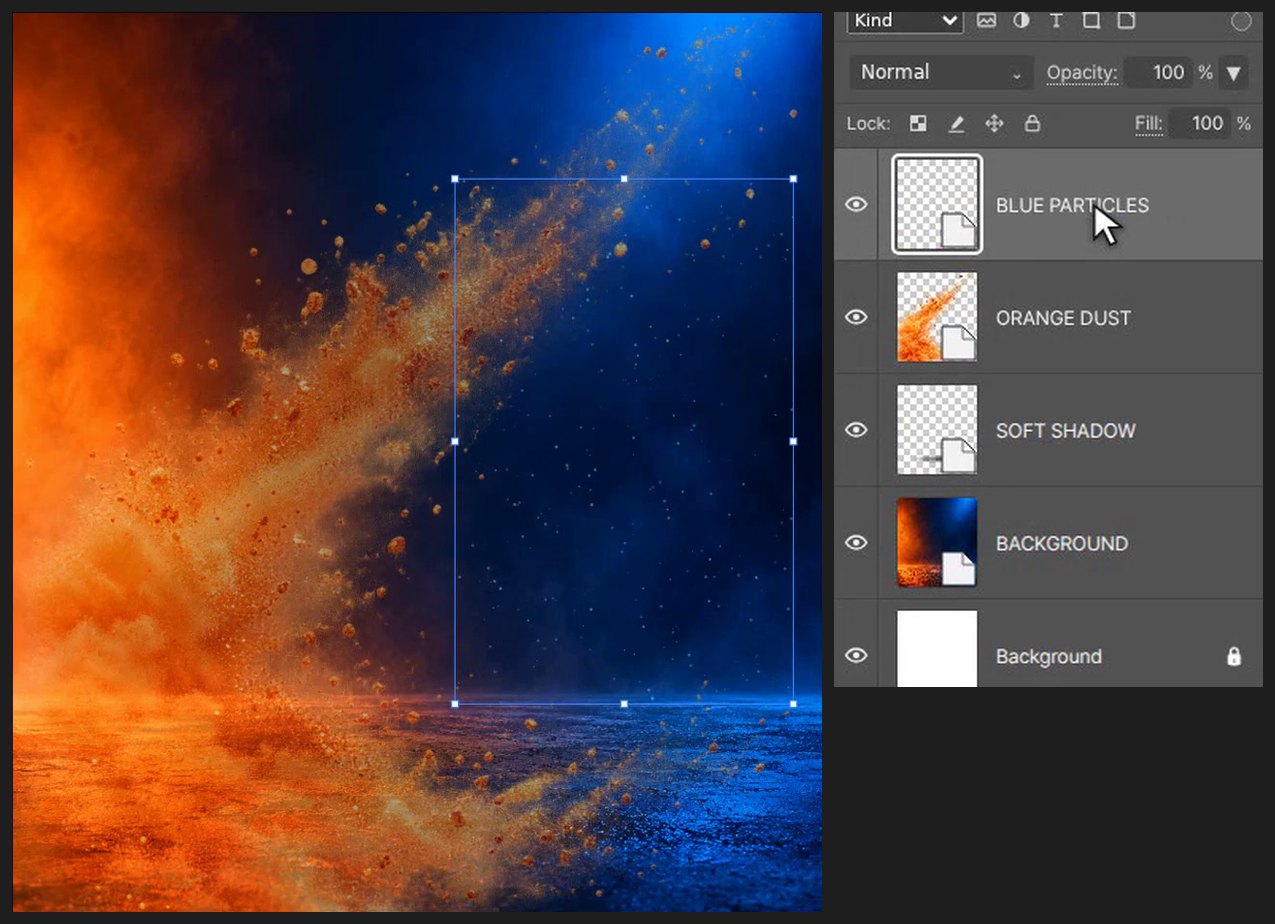
Choose File > Place Embedded… and pick BLUE_PARTICLES_EDITABLE.svg. Drag inside the box to move it and drag a corner handle to resize it. Press Enter (or double-click the image) to finish.
-
Place the shoe
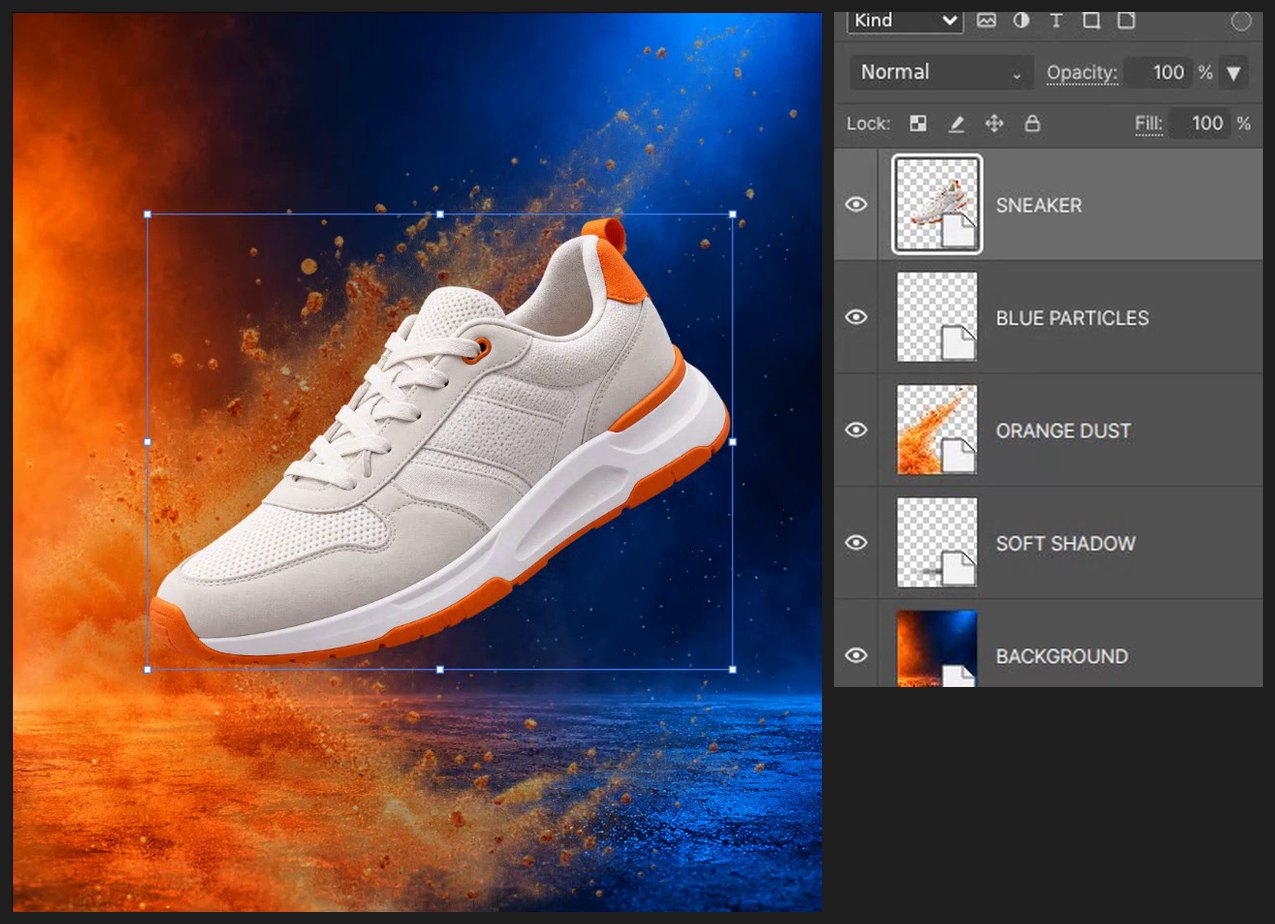
Choose File > Place Embedded… and pick SHOE_ORIGINAL_ALPHA.png. Drag inside the box to move it and drag a corner handle to resize it. Press Enter (or double-click the image) to finish. Then press V and drag the shoe to set the gap above the shadow.
-
Check and save
Press Ctrl+0 to see the whole ad. Press Ctrl+Alt+S (File > Save a Copy…) and choose PSD to keep an editable layered copy.
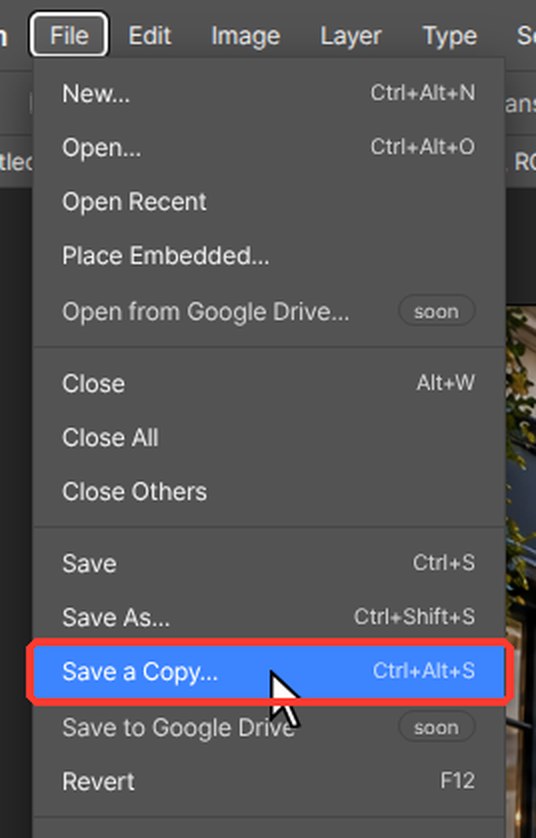
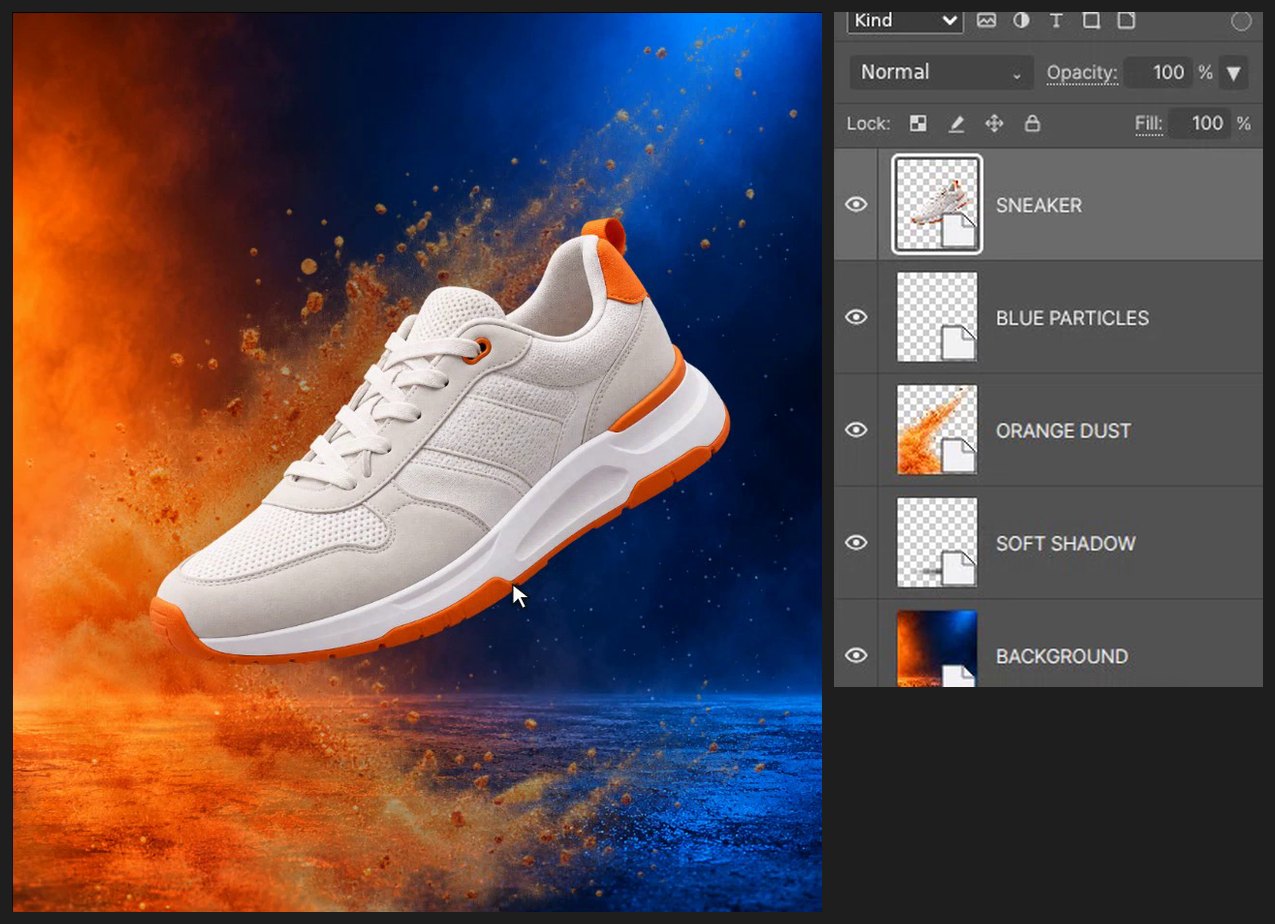
If a browser shortcut takes over, use the matching editor menu command. Keep the source files and practice on a copy.
Questions
Do I need Photoshop for this tutorial?
No. Every step is done in PhotoVim in your browser, with nothing to install. Menu names and shortcuts follow Photoshop, so the steps look familiar if you already use it.
Why lower the dust layer's opacity?
The dust should add atmosphere without covering the product. Around 58% keeps the shoe as the focus.