Create a Color Echo Effect with Duplicate Layers
Duplicate a portrait into orange, magenta and cyan echoes, then add editable type. Follow the actual editing workflow with shortcut captions.
Pause at each step and follow the shortcuts on screen. The practice files contain separate source layers; the video is a recorded UI demonstration.
Watch the vertical Shorts tutorial
English subtitles (SRT)Steps
-
Place the background and the dancer
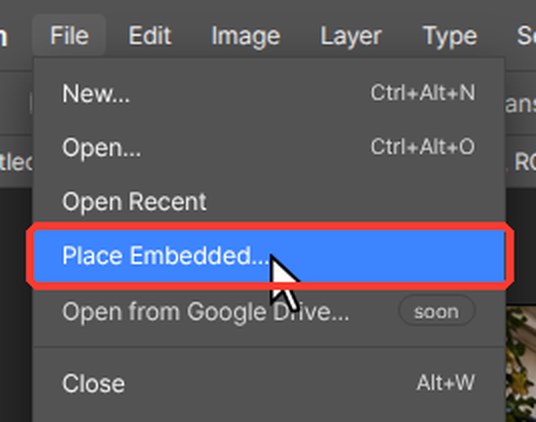
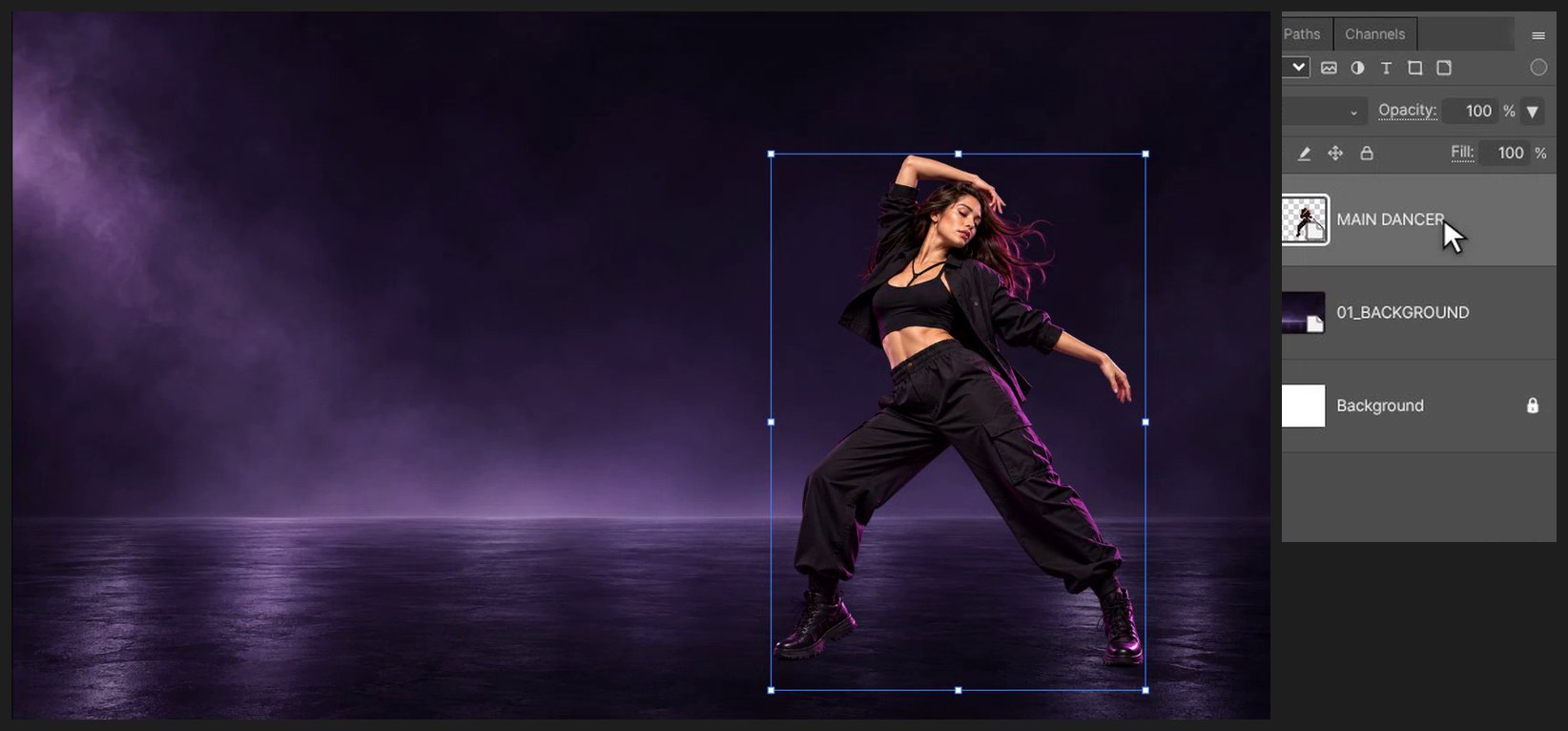
Press Ctrl+Alt+N (or File > New…). Type 1920 in Width and 1080 in Height, then click Create. Choose File > Place Embedded… and pick 01_BACKGROUND.png. Drag inside the box to move it and drag a corner handle to resize it. Press Enter (or double-click the image) to finish. Place 00_DANCER_ORIGINAL_ALPHA.png the same way.
-
Make the first echo
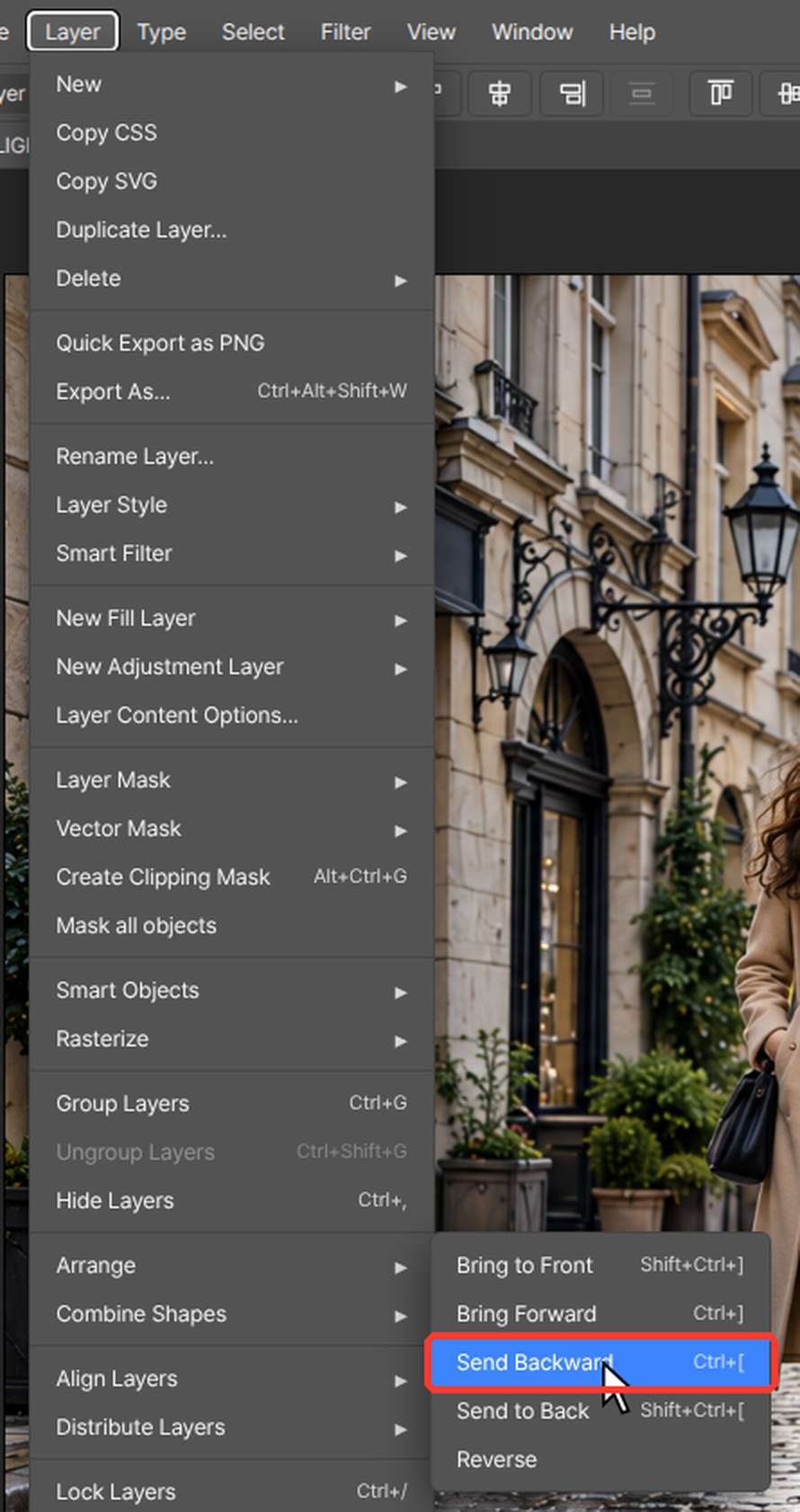
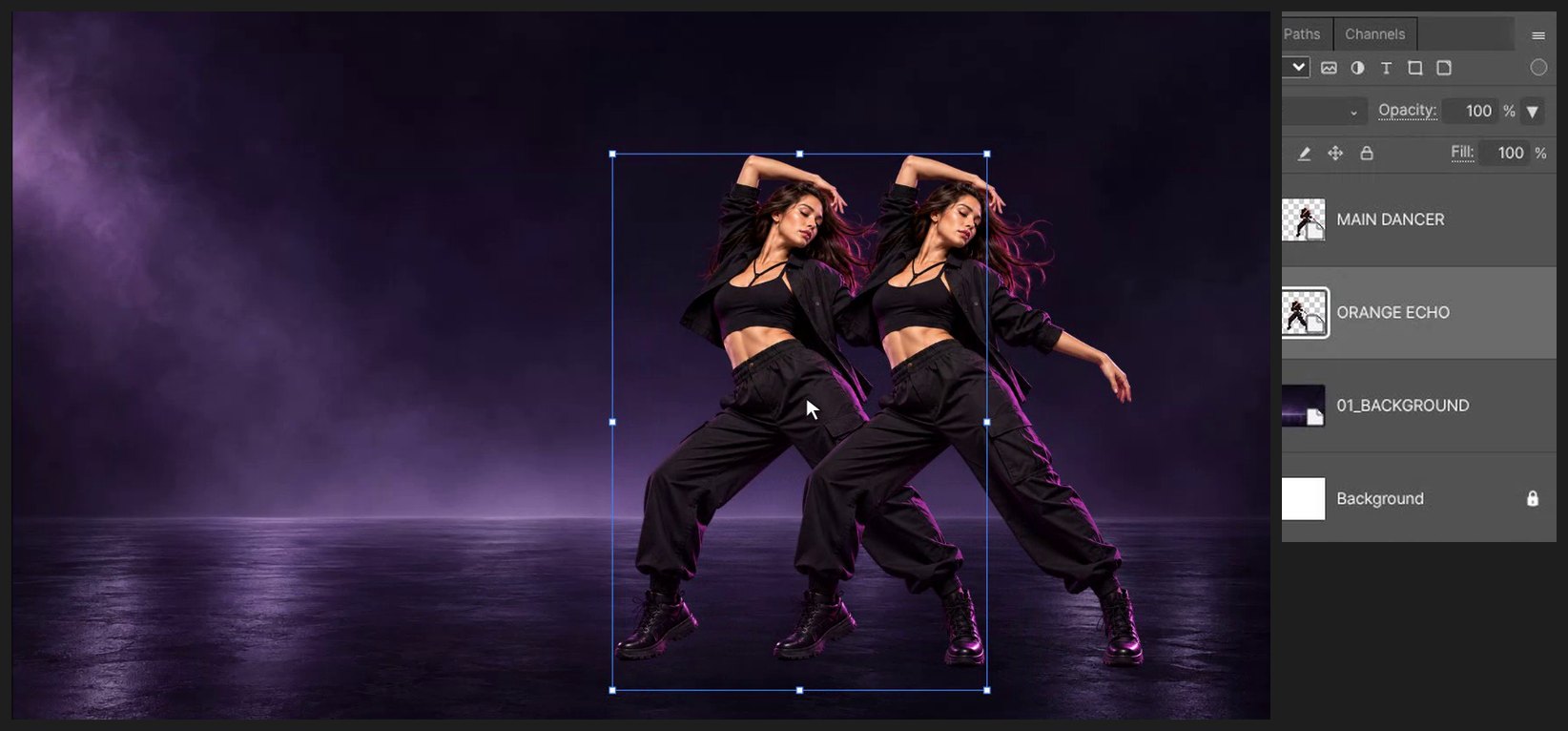
Press Ctrl+J to copy the dancer, then Ctrl+[ (Layer > Arrange > Send Backward) to put the copy behind her. Press V and drag the copy to the left.
-
Color the echo orange
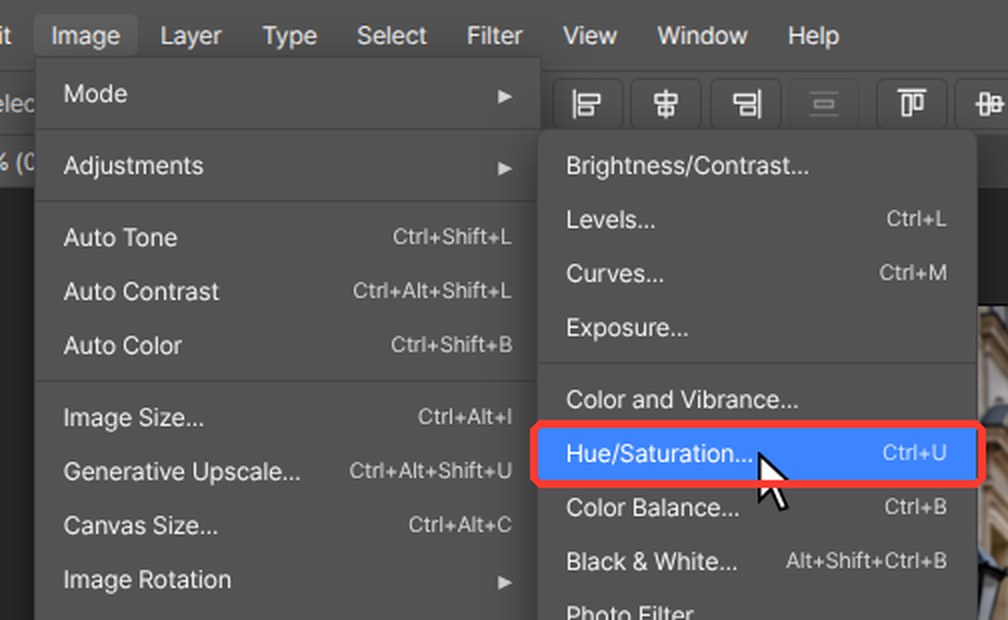
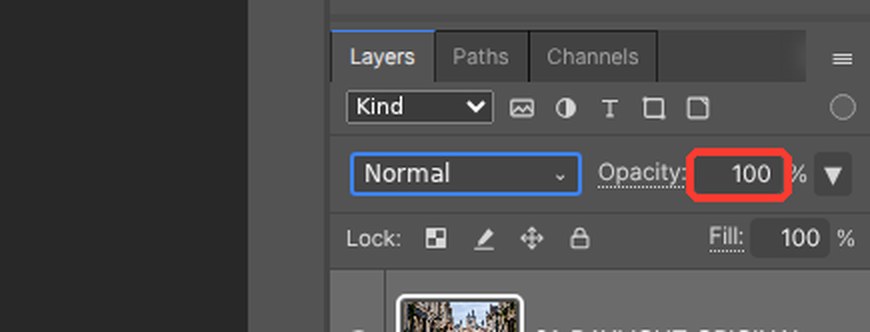
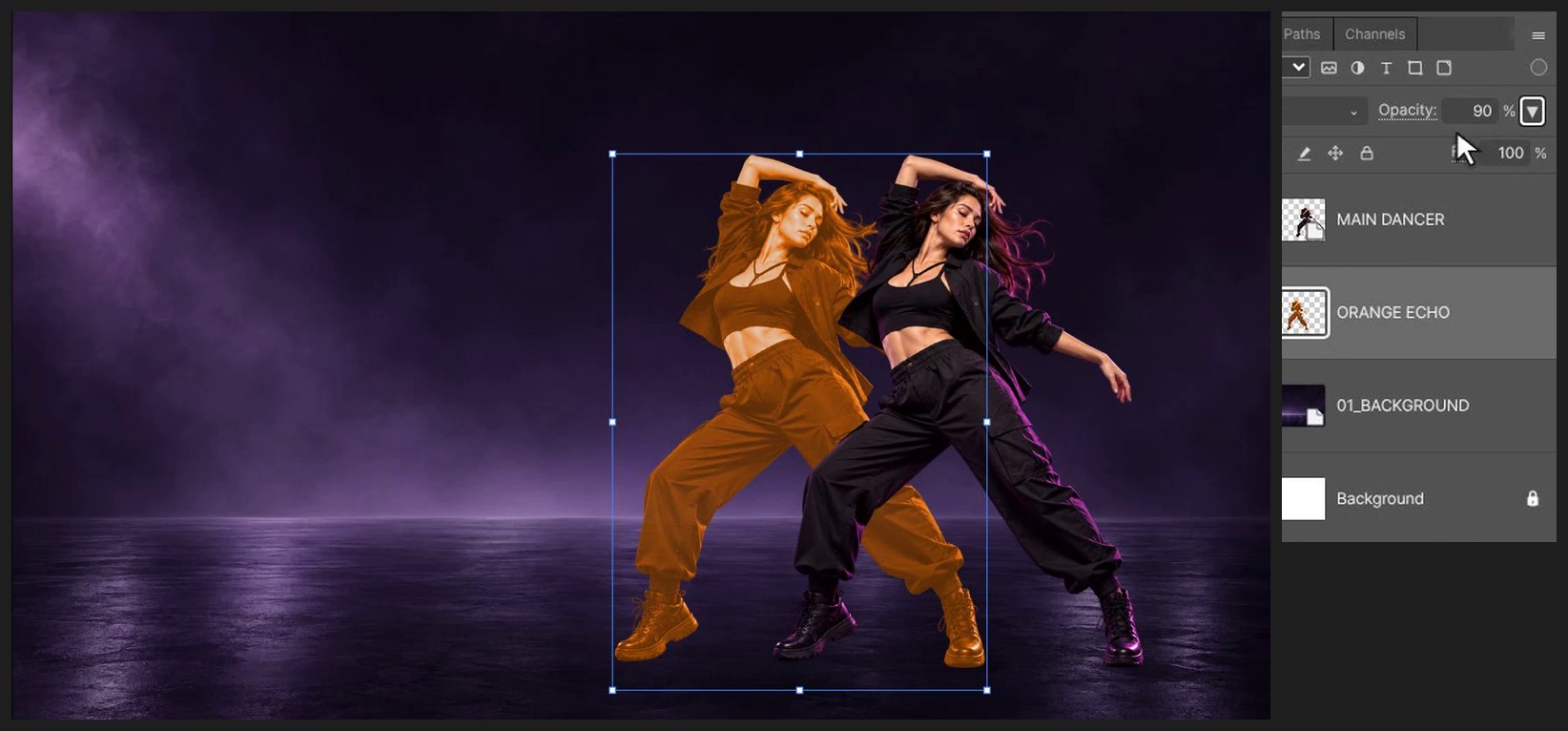
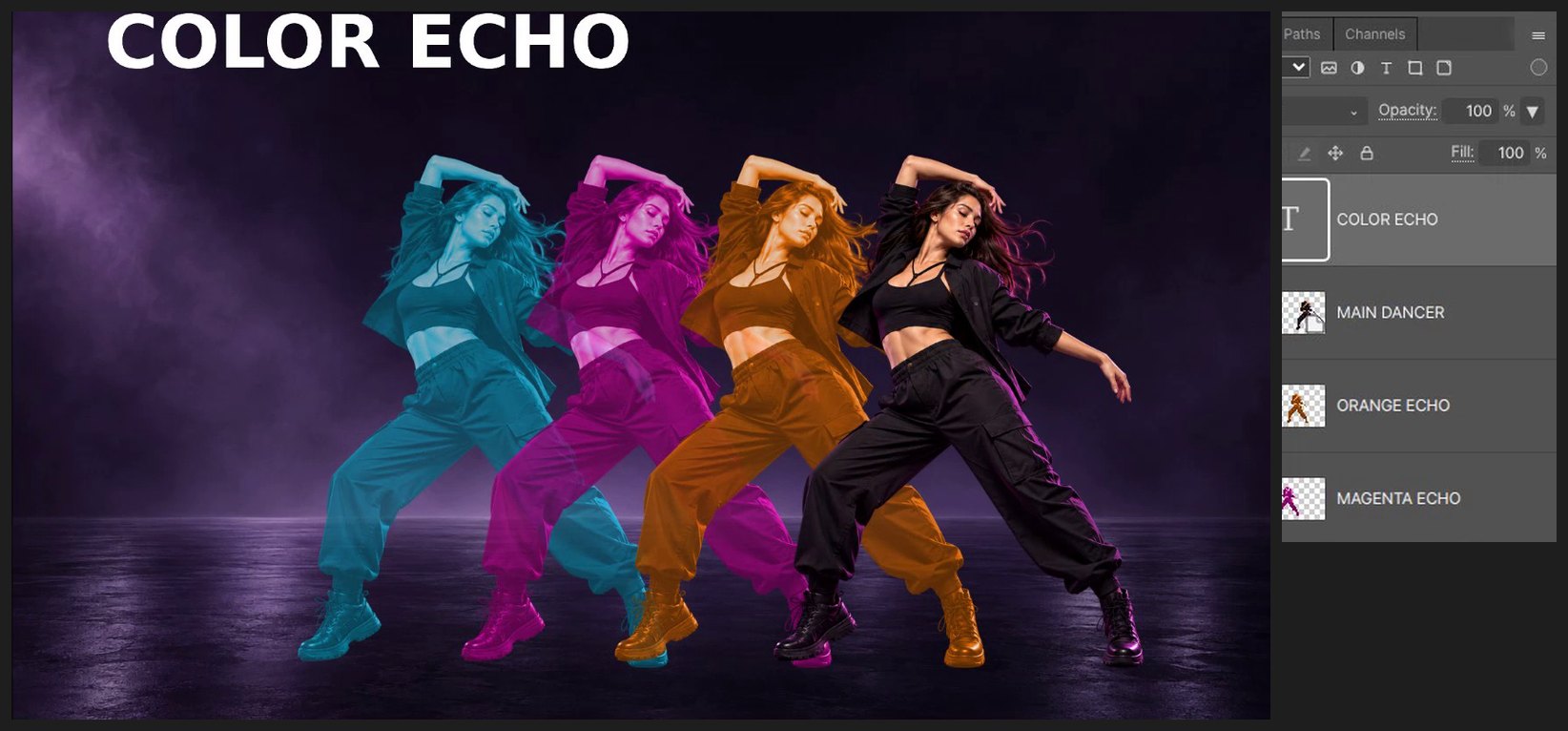
Press Ctrl+U (Image > Adjustments > Hue/Saturation…). Turn on Colorize, set Hue to 28 and click OK. Type 90 in the Opacity box at the top right of the Layers panel and press Enter.
-
Add magenta and cyan echoes
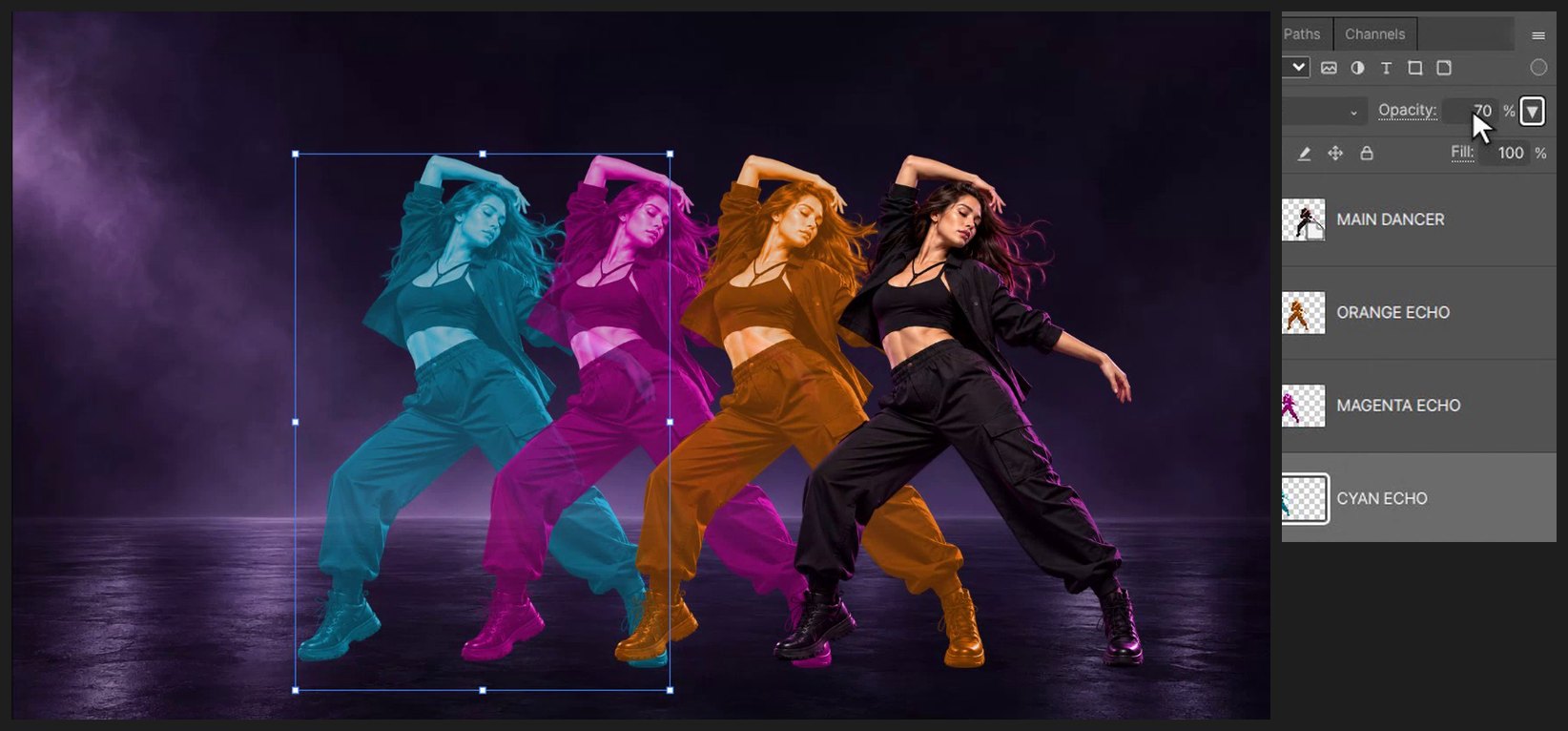
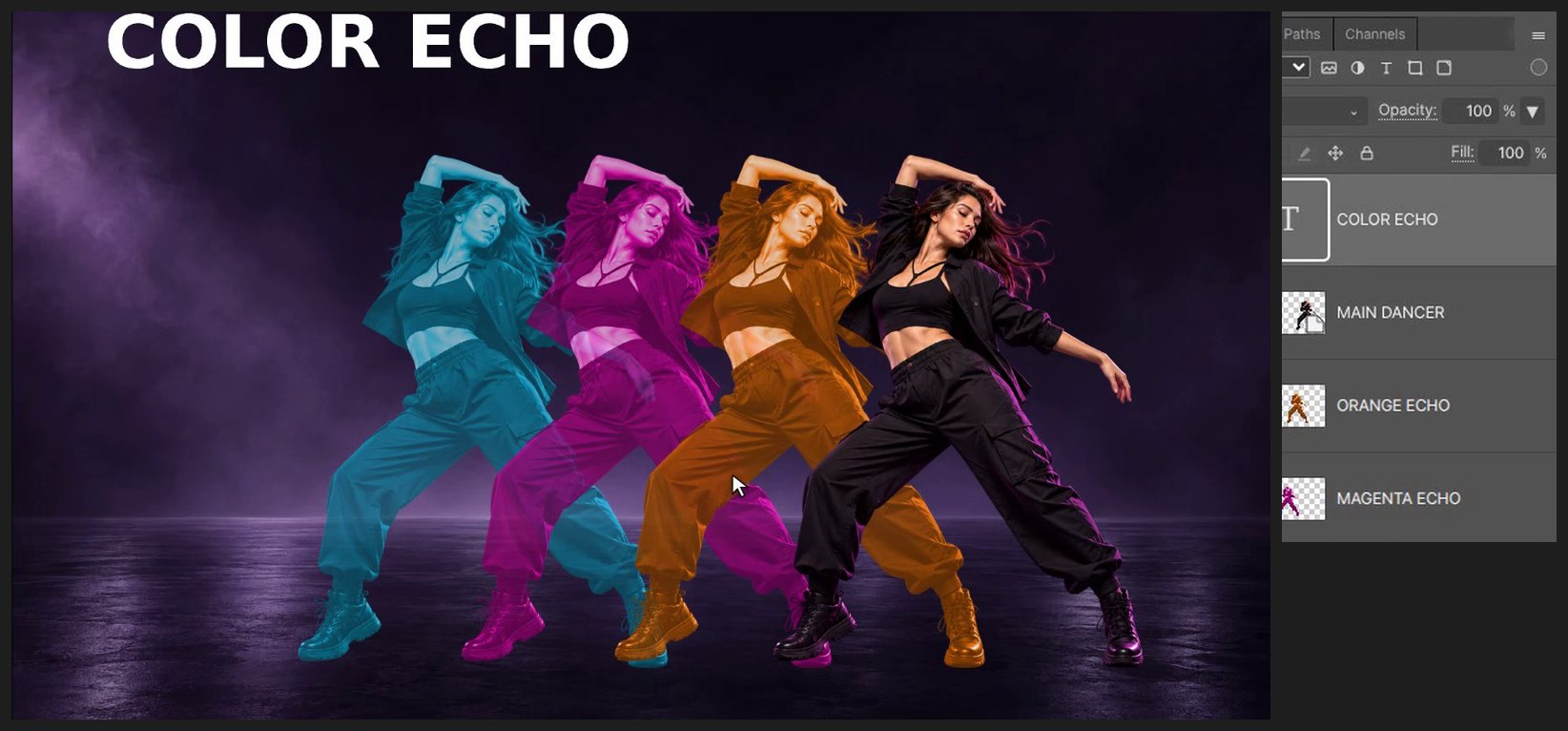
Repeat step 2 and 3 twice: Hue 315 for magenta at 80% opacity, and Hue 190 for cyan at 70%. Move each new copy a little further left.
-
Add the title
Press D, then X so white is the foreground color. Press T for the Type tool, click on the canvas and type COLOR ECHO. Press Ctrl+Enter to finish.
-
Save
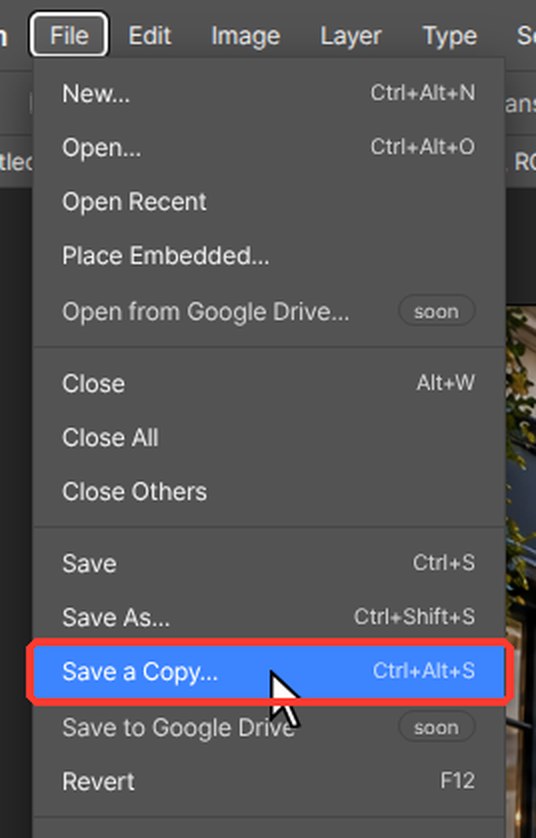
Press Ctrl+Alt+S (File > Save a Copy…) and choose PSD to keep an editable layered copy.
If a browser shortcut takes over, use the matching editor menu command. Keep the source files and practice on a copy.
Questions
Do I need Photoshop for this tutorial?
No. Every step is done in PhotoVim in your browser, with nothing to install. Menu names and shortcuts follow Photoshop, so the steps look familiar if you already use it.
How do I change an echo color later?
Select that echo layer, open Hue/Saturation (Ctrl+U) with Colorize on and pick a new Hue.